
Note: This article is for the Premier Portal, which you log in to at voiply.com using a secure link sent to your email. The screens look like the pictures below. If you log in at business.voiply.com instead, or your screens look different, you are using our Hosted PBX system. In that case, please see Premier - How to Reset the Voicemail PIN in Hosted PBX for the right steps.
Your voicemail PIN is the 4-digit code you use to check your voicemail and manage your messages. If you forgot it or want to pick a new one, you can do that right in the Premier Portal.
There are two ways to reset a PIN:
- To reset your own PIN, follow the steps in the first section.
- If you are an Office Manager resetting the PIN for someone else on your account, use the second section.
Reset Your Own Voicemail PIN (Basic User)
Use these steps to change the PIN for your own voicemail.
- Log in to your Voiply Portal. Go to voiply.com, click Login, then sign in using the Magic Link emailed to you. A Magic Link is just a secure link you click to log in, with no password needed. If you need help signing in, see How to Log In to Your Voiply Portal.
- On your Dashboard, look for the row of tabs near your name and devices: Profile, Voicemail, and Call Forwarding. If you do not see them, scroll down the page a little.
- Click the Voicemail tab.
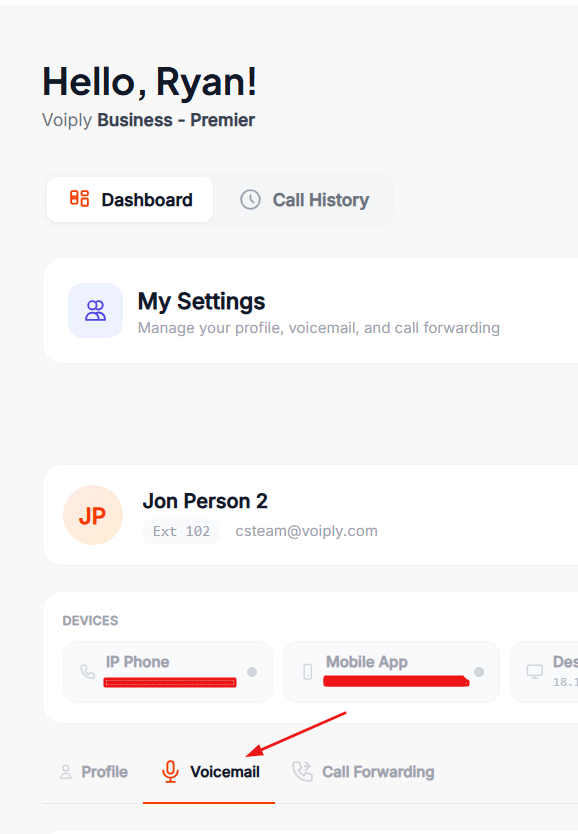
- Find the box labeled Voicemail PIN (4 digits).
- Type your new 4-digit PIN into the box. Pick 4 numbers that are easy for you to remember but hard for others to guess. Try not to use a simple code like 1234.
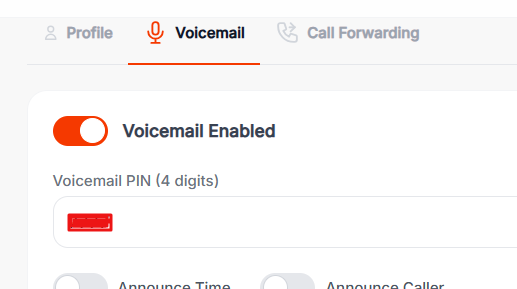
- Click the orange Save Voicemail button.
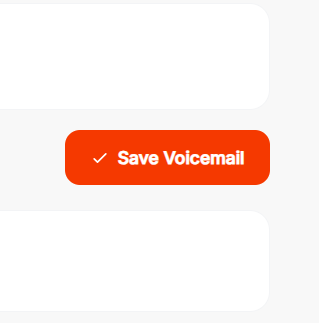
Your new PIN works right away. You can also use it the next time you check your voicemail.
Reset Another User's Voicemail PIN (Office Managers)
Only Office Managers can reset the PIN for other people on the account. If you are not an Office Manager, please reach out to the admin on your account for help.
- Log in to your Voiply Portal at voiply.com using the Magic Link emailed to you. If you need help signing in, see How to Log In to Your Voiply Portal.
- At the top of the page, click Users.
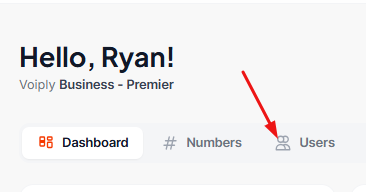
- Find the person whose PIN you want to reset. You can scroll through the list, also you can search by name, extension, or email at the top.
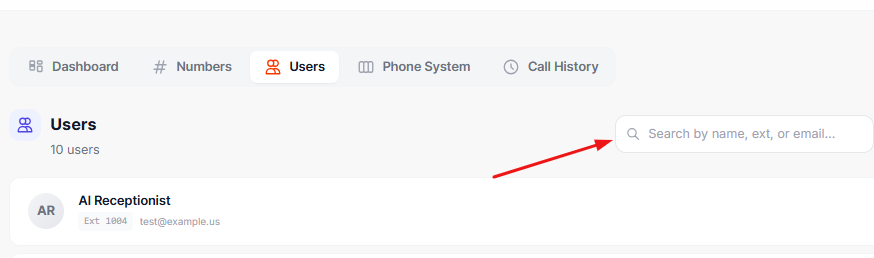
- Click that person's name to open their settings.
- Click the Voicemail tab.
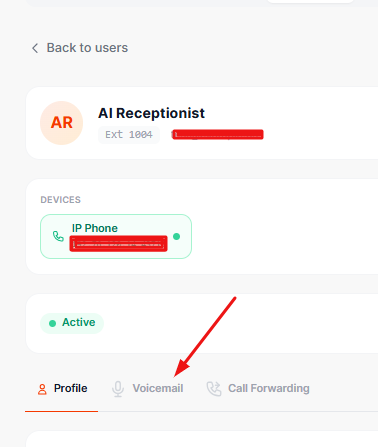
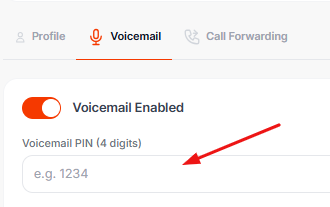
- Find the box labeled Voicemail PIN (4 digits).
- Type a new 4-digit PIN into the box. Try not to use a simple code like 1234.
- Click the orange Save Voicemail button in the top right corner.

The new PIN works right away. That person can now use it to check their voicemail and clear out old messages.
Need Help?
We're here for you. Reach out anytime: