
Key Details
- Who can use this: Any Voiply residential customer with an active account
- Where to find it: Log in to your portal at voiply.com and scroll down until you see the Support Tickets section
- Cost: Free to use
- Support hours: Available through phone and live chat during business hours
What's Included in the Support Tickets Section
Ticket Summary
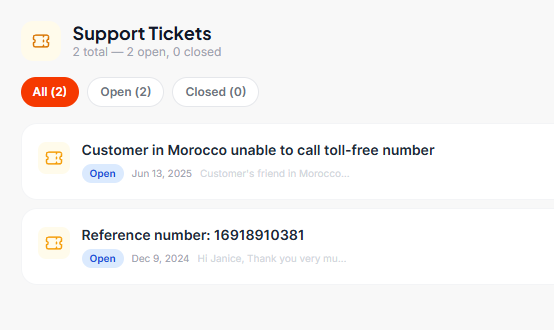
At the top of the Support Tickets section, you will see a quick summary showing how many tickets you have in total, how many are open, and how many are closed.
Filter Tabs
You can sort your tickets using three filter tabs:
- All — Shows every ticket you have ever submitted
- Open — Shows only tickets that are still active and being worked on
- Closed — Shows tickets that have been resolved
Ticket List
Each ticket in the list shows:
- A short title describing the issue
- A status badge (Open or Closed)
- The date it was submitted
- A brief preview of the ticket description or latest message
Click on any ticket to open it and see the full details.
Inside a Ticket
When you click on a ticket, you will see the full ticket view. Here is what each part means:
Ticket Header
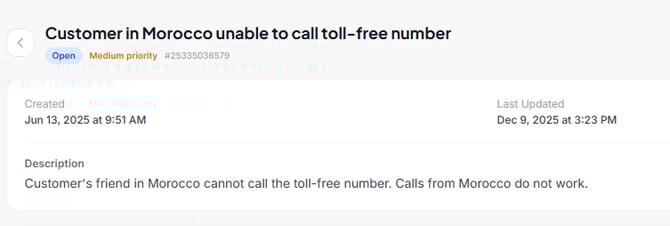
At the top you will see the ticket title along with three important labels:
- Status — Whether the ticket is Open or Closed
- Priority — How urgent the ticket is (for example, Medium priority)
- Ticket Number — A unique ID starting with # that you can use to reference your ticket when contacting support
Ticket Details
This section shows:
- Created — The date and time the ticket was first submitted
- Last Updated — The date and time of the most recent activity on the ticket
- Description — A summary of the issue that was reported
Add a Note
If you have new information to share about your issue, you can type it into the Add a Note box and click the Add Note button. This sends your update directly to the support team so they have the latest details. 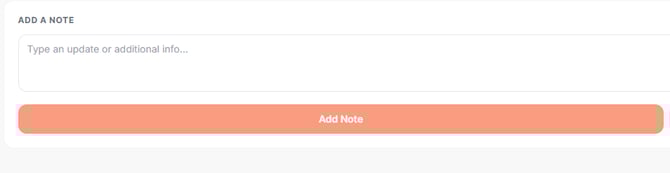
Close Ticket
If your issue has been resolved, you can click the Close Ticket button to mark it as done. You can always view closed tickets later by clicking the Closed filter tab in the ticket list. 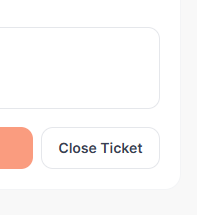
Step-by-Step: How to Submit a New Ticket
- Log in to your Voiply residential portal
- Scroll down to the Support Tickets section
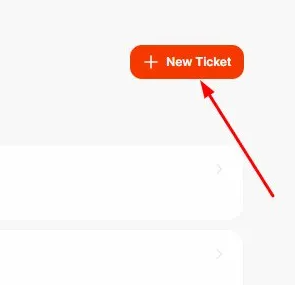
- Click the + New Ticket button in the top right corner
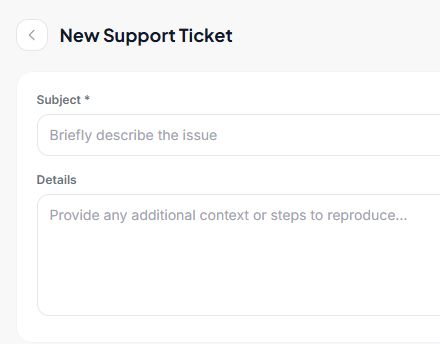
- A New Support Ticket form will open with two fields:
- Subject (required) — Briefly describe the issue in one short sentence. For example: "Cannot make calls" or "Voicemail not working"
- Details — Use this space to give our team more context. You can describe what happened, when it started, and any steps that led to the problem. The more detail you include, the faster we can help
- Once you have filled in the form, click the Submit Ticket button in the top right corner
- Your ticket will appear in the Support Tickets list and our team will follow up as soon as possible
Summary
The Support Tickets section makes it easy to track and manage your support requests all in one place. You can filter tickets by status, check priority levels, add notes with new information, and close tickets once your issue is resolved. If you ever need a hand, you can also reach our team directly by phone at (844) 843-4175 or through Live Chat in the portal.