
Fill out the Compose screen, attach your file, and send your fax to up to 5 recipients from your fax workspace.
Log In First
- Sign in to your Voiply Fax App. Need help signing in? See our guide: How Do I Log In to the Voiply Fax App?
Open the Compose Screen
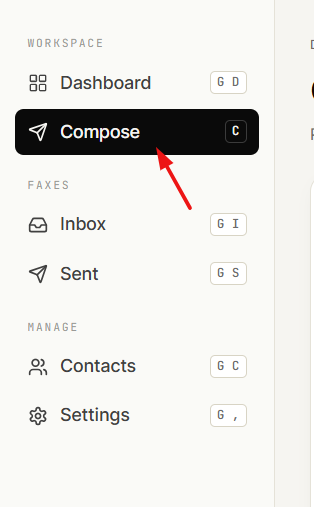
- In the left menu, click Compose. You can also press C on your keyboard, or click Send fax from the Dashboard.
Fill Out Your Fax
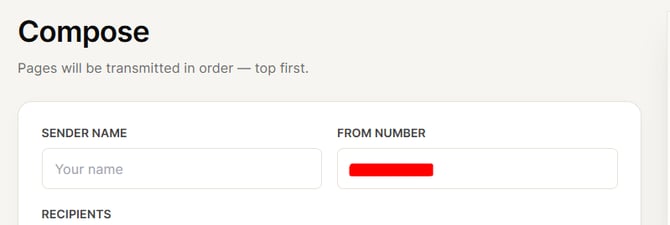
- Check your sender details.
- Sender Name is optional. Add your name if you'd like it to show on the cover sheet.
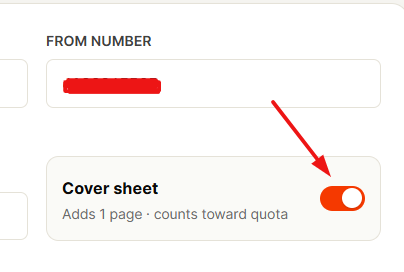
- From Number is already filled in with your Voiply fax number. Please leave this one as it is.
- Enter the recipient's fax number. In the Recipients field, type the fax number you're sending to. You can type it however you like, since the app formats it for you automatically.
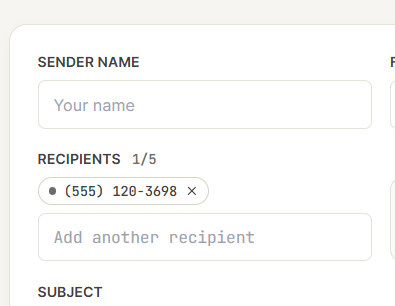
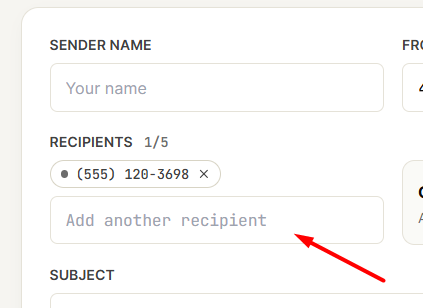
- (Optional) Send to more than one person with Broadcast. To fax several people at once, click Add another recipient and enter the next number. You can send to up to 5 recipients in a single fax. The counter (for example, 1/5) shows how many you've added. To remove one, click the × next to it.
- Choose whether to include a cover sheet. Turn the Cover sheet toggle on if you'd like one. A cover sheet adds 1 page, and that page counts toward your monthly page quota. When it's on, you'll see a live preview of the cover sheet on the right side of the screen.
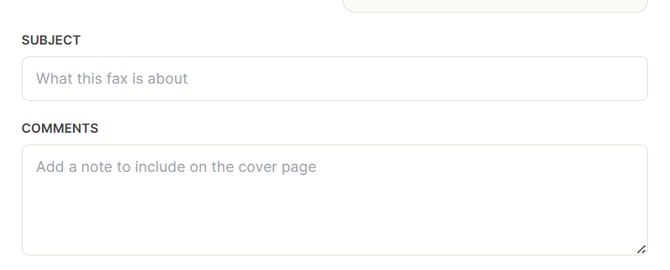
- Add a subject. In the Subject field, enter a short line about what the fax is about. This field is required.
- Add your comments. In the Comments field, add a note to go with your fax. This field is also required, and your note appears on the cover sheet.
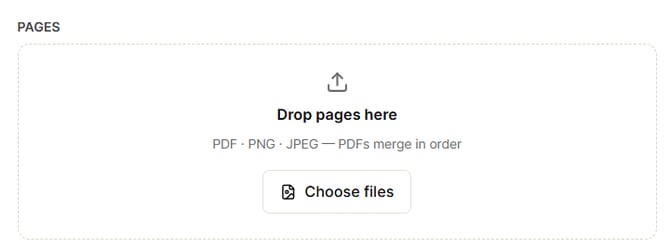
- Attach your pages. Under Pages, click Choose files or drag your file into the box. You can attach PDF, PNG, or JPEG files, up to 25 MB. If you attach more than one PDF, they merge into a single fax in the order shown. Pages are sent in order, starting from the top, so arrange them the way you want them to arrive.
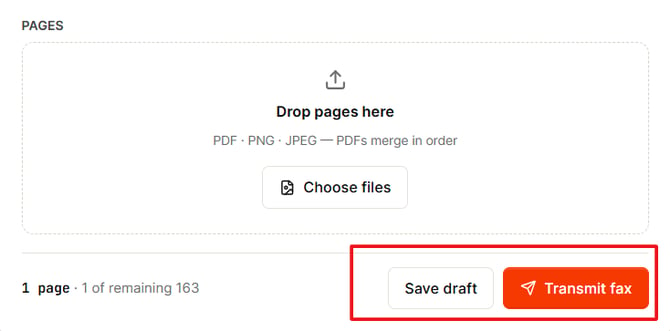
- Send it. Click Transmit fax to send your fax. You can also click Save draft to save your work and finish sending later.
Track Your Fax Status
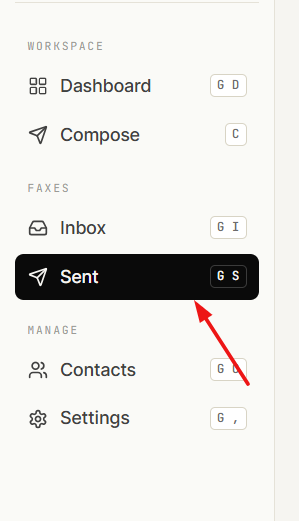
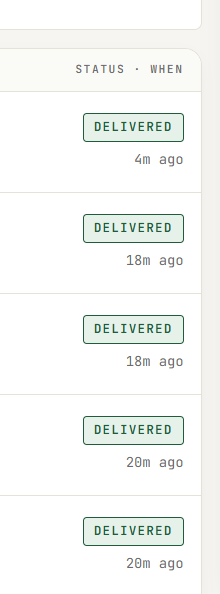
- Open the Sent box from the left menu (or press G then S) to see your outgoing faxes. Each one shows the recipient, the subject, the page count, the status, and when it was sent.
 Your fax can show one of these statuses:
- Queued means your fax is in progress and waiting to send.
- Delivered means your fax was sent successfully.
- Failed means your fax did not go through.
✅ Helpful Tips
- PDF gives the best results. You can also send PNG or JPEG files, up to 25 MB.
- You don't need to format the fax number. Just type the digits and the app formats it for you.
- Sending to a group? Broadcast lets you reach up to 5 recipients in one fax.
- A cover sheet adds 1 page that counts toward your page quota, so keep that in mind when you're close to your limit.
- A quick heads-up on your monthly pages: both the faxes you send and the faxes you receive now count toward your monthly page total. You can check where you stand anytime under "Pages this cycle" in your workspace.
- If a fax shows Failed, the recipient's fax line may be busy or not working. Double-check the number with them, then try again.
Need Help?
We're here for you. Reach out anytime: