
Log In First
- Go to https://fax.voiply.com/ and sign in. Need help signing in? See our guide: How to Log In to the Voiply Fax App.
Open Your Contacts
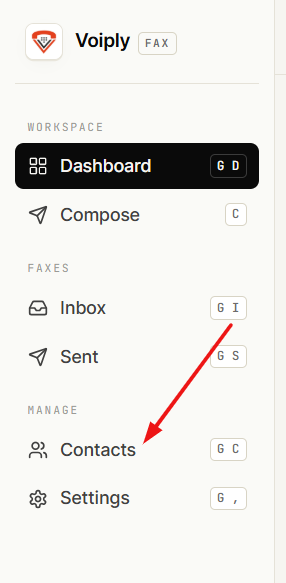
- In the left menu, click Contacts. You can also press G then C.
Add a New Contact
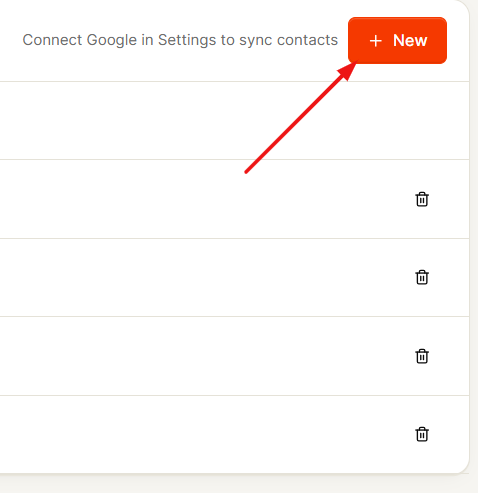
- Click + New in the top right. The New contact form opens.
- Fill in the contact's details:
- Name – what you'd like to call this contact, like Billing or Office.
- Fax Number – the contact's fax number.
- Email (Optional) – add an email address if you'd like.
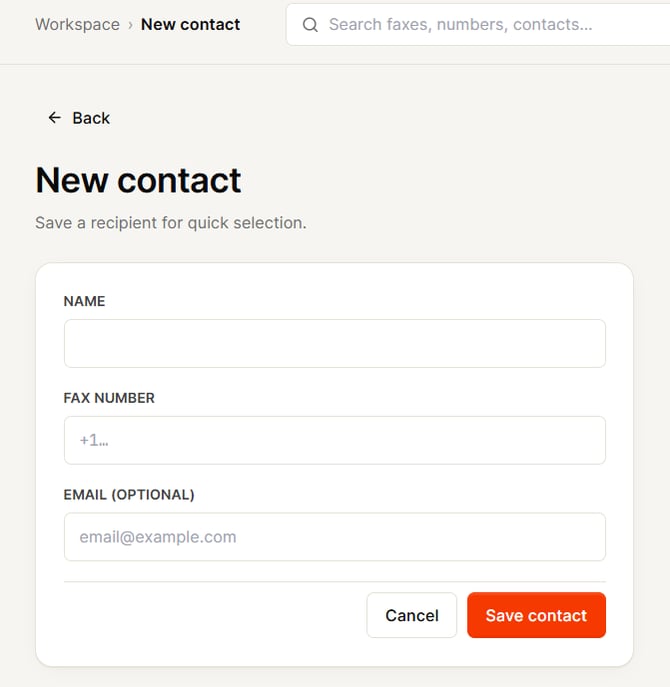
- Click Save contact. Your new contact appears in your Contacts list right away.
Sync Your Google Contacts
Prefer to bring in your existing address book? You can connect Google and pull your contacts in automatically. Only the account owner can connect Google.
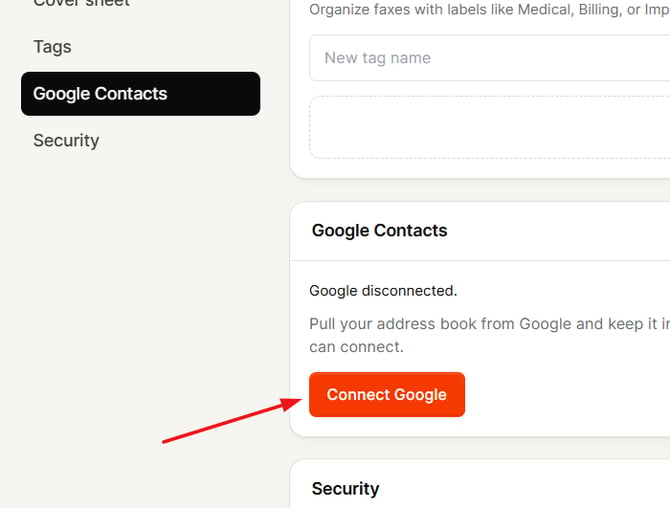
- In the left menu, click Settings, then choose Google Contacts.
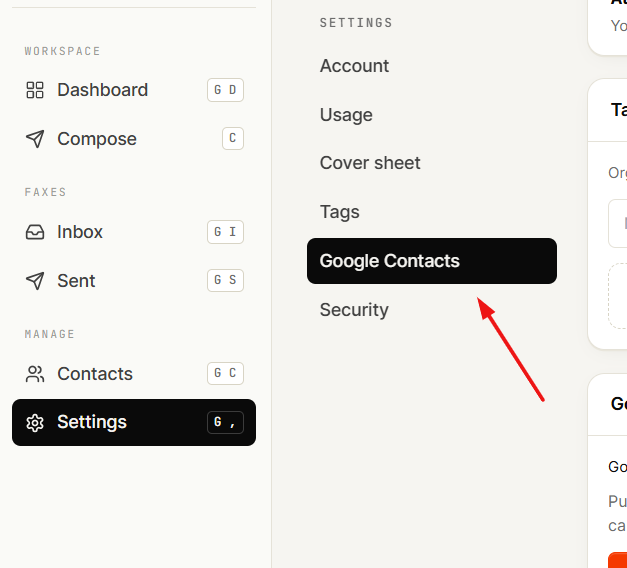
- Click Connect Google.
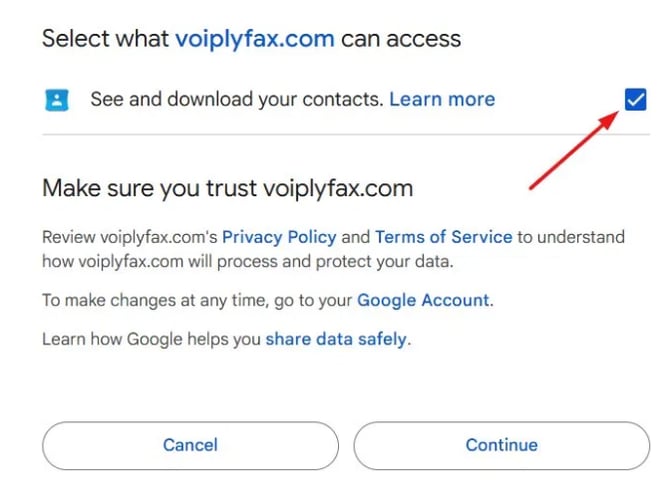
- Sign in to your Google account when prompted. Google will ask to share your contacts with Voiply Fax. Allow the "See and download your contacts" access, then click Continue.
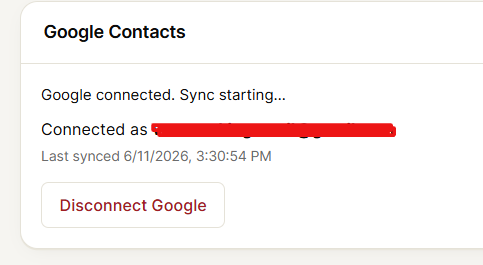
- You'll return to the app. Google Contacts now shows as Connected, along with the account you used and the time of the last sync. Your Google contacts are pulled into your Contacts list, right alongside any you added by hand.
Use a Saved Contact When Sending
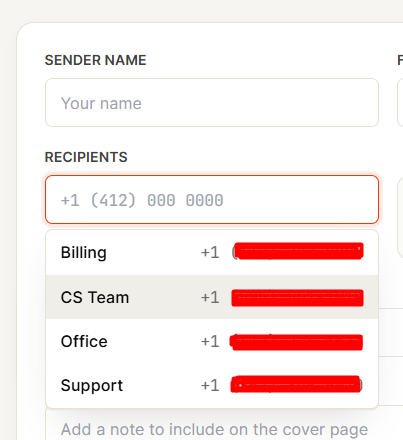
- When you compose a fax, click the Recipients field. Your saved contacts appear in a dropdown. Pick the one you want, or start typing the name to filter the list and then select it. [Screenshot: Recipients field showing the saved contacts dropdown] Sending to more than one person? You can choose a saved contact for each recipient as you add them, up to 5 in one fax.
Remove a Contact
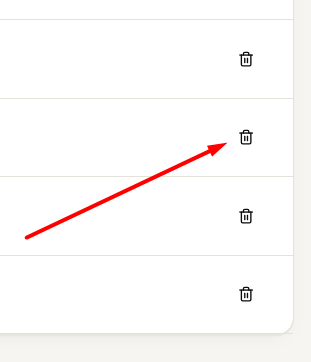
- On the Contacts page, click the trash icon next to the contact you want to remove. When you're asked "Remove [name]?", click OK to confirm.
Helpful Tips
- Contacts you add by hand can't be edited in the app. To change one, remove it and add it again. For a synced Google contact, update it in Google and then sync again.
- Voiply keeps your Google contacts in sync each time you log in. To pull the latest right away, open the Contacts page and click Sync Google.
- Want to stop syncing? Go to Settings, choose Google Contacts, and click Disconnect Google.
- Use the search bar at the top of the Contacts page to quickly find a saved contact.
- You can also find a saved contact from the search bar at the top of the app, alongside your faxes and numbers.
Need Help?
We're here for you. Reach out anytime: