
How to Access the Numbers Tab
- Log in to your Voiply Portal at How to Log In to Your Voiply Portal
- From the top navigation menu, click Numbers
You'll land on the Numbers page, which is divided into two main sections:
- Phone Numbers
- Port Requests
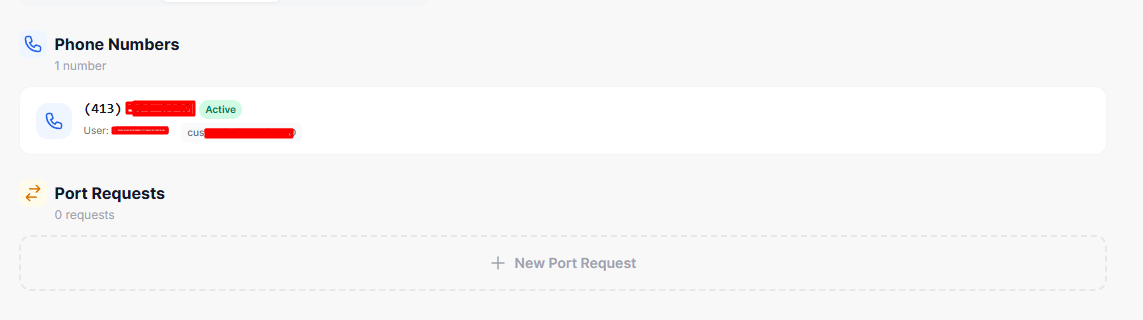
Phone Numbers Section
The Phone Numbers section shows all phone numbers currently assigned to your account, along with a count of how many numbers are on your plan (e.g., "1 number").
Here's what each entry displays:
- Phone Number — Your active Voiply phone number (e.g., (413) 321-0132).
- Status — Shows whether the number is active. If your service is up and running, you'll see a green Active badge.
- User — The name of the user assigned to that number (e.g., User: Hanif Hakim).
- Customer ID — A system-generated identifier associated with your account (e.g., cus_US2cOp1KkO1HTD).
If you only have one number, you'll see a single entry here. Multiple numbers will appear as a list.
Port Requests Section
The Port Requests section displays any requests to transfer an existing phone number to Voiply. The section header will show the current count of active requests (e.g., "0 requests").
This section is especially helpful if you chose to keep your current number when signing up, or if you requested a number transfer after your order was placed.
Submitting a New Port Request
If no port requests have been submitted yet, you'll see a + New Port Request button. Click it to begin the number transfer process.
What You'll See in an Active Port Request
Once a port request has been submitted, you'll see details including:
- Date Created — When the port request was submitted.
- End User Name — The name associated with the port request.
- Billing Telephone Number (BTN) — The primary number listed on your previous carrier's bill.
- Port Status — The current stage of the transfer (e.g., pending or completed).
- Porting Date — The scheduled or completed transfer date, once available.
- Actions — View additional details related to the port request.
For step-by-step help reviewing or making changes to an existing port request, see our guide: How to Check and Update Your Port Request
Helpful Tips
- Don't see a porting case yet? Port requests may take a short time to appear after submission.
- Porting timelines depend on your previous carrier and the accuracy of the information provided.
- If your number shows as Active, your service is ready to use.
Takeaway
The Numbers tab gives you a clear view of your active phone number(s) and any number transfer activity. Whether you're confirming your service status or keeping an eye on a port request, this section keeps all number-related details in one easy place.