
Steps to Check Your Port Status
1. Log in to the Account Portal
Access your Voiply account by logging in using this guide: How to access your Voiply Portal?
2. Go to the Numbers Tab
Once logged in, click Numbers from the top navigation menu. 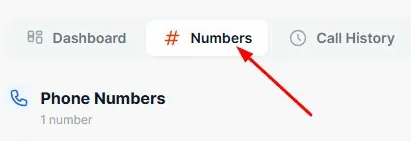
3. Review Your Port Requests
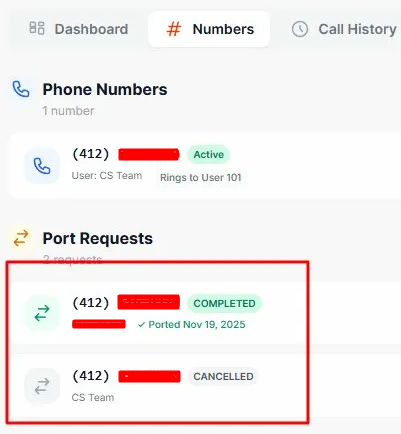
Scroll down past your active phone numbers to find the Port Requests section. Each request will display the associated phone number, the name it was submitted under, and a status badge. You may see one of the following statuses:
- Submitted – Your request has been received and is being reviewed. You'll also see the date it was submitted.
- Jeopardy – There is an issue with your request that requires your attention. A rejection reason will be displayed when you open the request.
- Completed – Your number has been successfully ported. You'll see the ported date listed.
- Cancelled – This port request was cancelled and is no longer being processed.
4. Click a Port Request for More Details
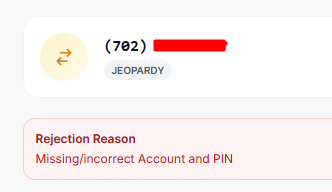
Click on any port request to open the full details. If your request is in Jeopardy, a red Rejection Reason banner will appear at the top explaining what needs to be corrected (e.g., "Missing/incorrect Account and PIN").
How to Update Your Port Request
If your port request is in Jeopardy or needs updated information:
- Click the port request to open the details page.
- Review the Rejection Reason banner at the top to understand what needs to be fixed.
- Update the necessary fields in the sections below:
- Contact Information – Confirm the full name and company name match your current provider's account exactly.

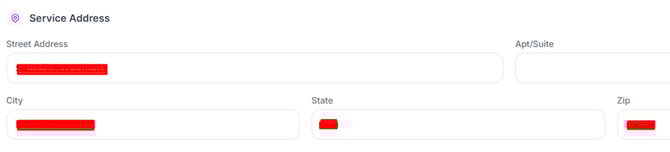
- Service Address – Make sure the street address, city, state, and ZIP code match your phone bill exactly.
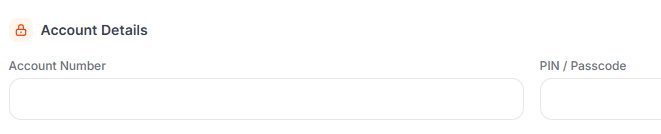
- Account Details – Enter your correct Account Number and PIN/Passcode from your current provider. These fields must be accurate to avoid further rejections.
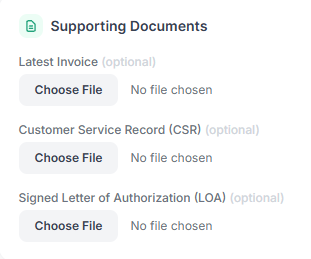
- Supporting Documents (optional) – Upload any of the following to help verify your account:
- Latest Invoice
- Customer Service Record (CSR)
- Signed Letter of Authorization (LOA)
- Contact Information – Confirm the full name and company name match your current provider's account exactly.
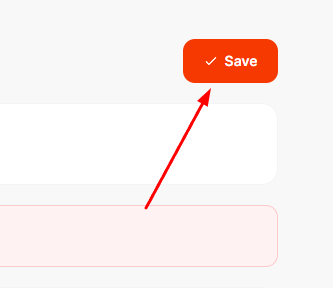
- Once all updates are complete, click the Save button in the upper right corner to resubmit your request.
💡 Tip: Even minor differences between what you enter and what's on file with your current provider can cause a rejection. Double-check every field against your most recent phone bill before saving.
Still need help? Contact our support team for assistance with your port request.