
An auto attendant greets your callers automatically and directs them to the right person or department. For example, it might say: "Press 1 for Sales, press 2 for Support." Once you fill out the form in your portal, the Voiply team sets it up for you, usually within a few hours.
Before You Start
Make sure you are logged in to your Voiply Business Premier portal. If you need help logging in, see How to Log In to Your Voiply Portal.
How to Request a New Auto Attendant
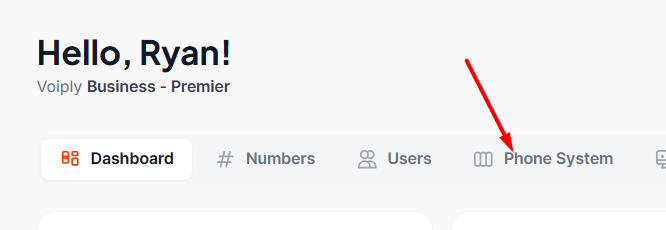
- From your portal dashboard, click Phone System in the top navigation bar.
- You will land on the Phone Menus page. This is where all of your auto attendants are listed. Click the + New button in the top right corner to create a new one.

- A form will open. Start by typing a name for this menu in the Menu Name field. Choose something that describes when or how it will be used, like "Main Menu" or "After Hours Menu."
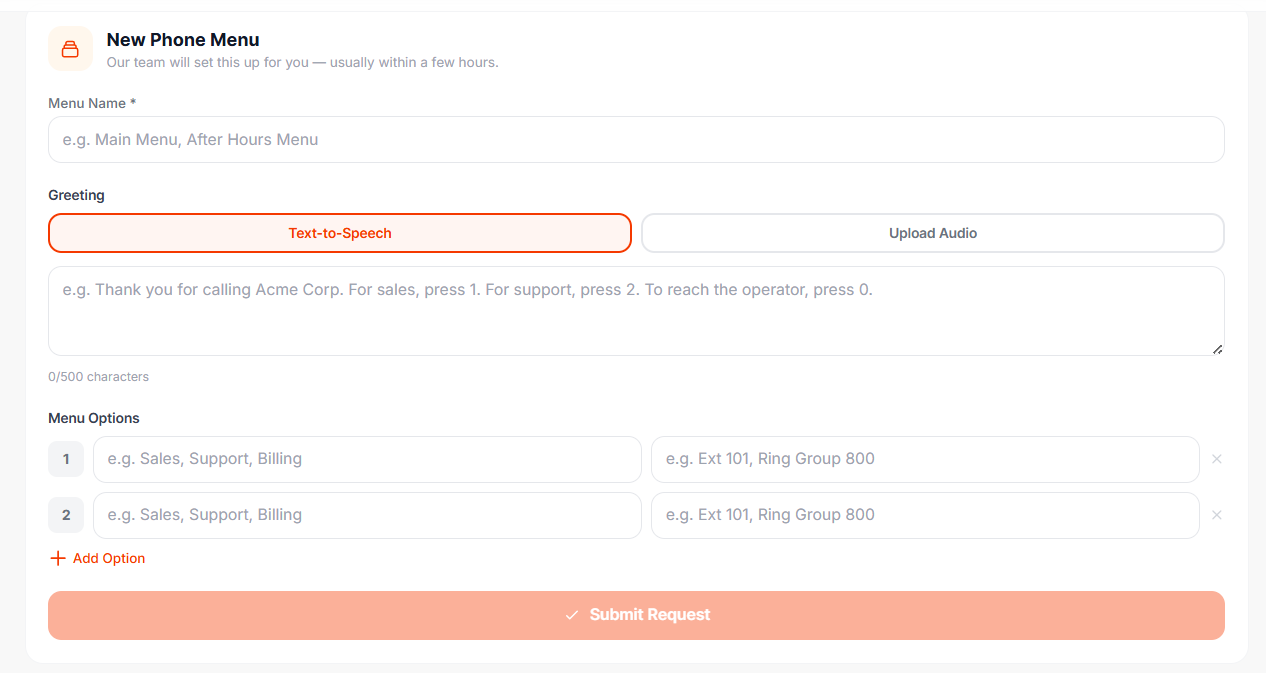
- Next, set up your Greeting. This is the message callers will hear when they call in. You have two ways to do this:
- Text-to-Speech — Type out what you want callers to hear in the text box. Voiply will turn your words into a recorded voice automatically. For example: "Thank you for calling Acme Corp. For Sales, press 1. For Support, press 2." You can enter up to 500 characters.
- Upload Audio — If you already have a recorded greeting saved as a WAV or MP3 file, click the Upload Audio tab, then click the upload area to choose your file.

- Under Menu Options, fill in the choices you want callers to have. Each option has two fields:
- The first field is the label, like "Sales," "Support," or "Billing." This is just so the Voiply team knows what each option is for.
- The second field is where the call should go, like an extension number or a ring group. For example: "Ext 101" or "Ring Group 800."
- When everything looks good, click Submit Request.
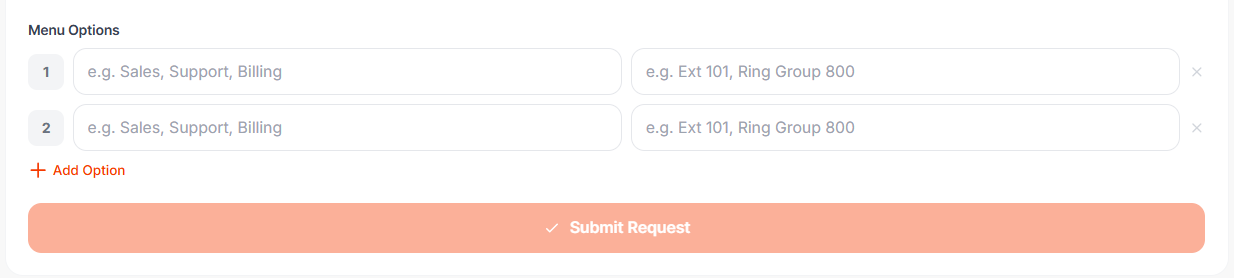
That's it. The Voiply team will receive your request and get your auto attendant set up, usually within 4 hours.
How to Check the Status of Your Request
After you submit, a support ticket is created automatically in your portal. You can check in on it at any time to see where things stand. For help finding and reading your tickets, see How to Create and Manage Support Tickets in Your Voiply Portal.
Still Need Help?
If you have questions about your auto attendant or are not sure what to enter on the form, we are happy to help.
- 📞 Call us: (844) 843-4175
- 💬 Live Chat: Available in your portal
- 📧 Email: support@voiply.com