
Before you start: You'll need to be logged in to the Voiply portal. If you need help with that, check out how to log in to your portal account.
Was your last port request cancelled or rejected?
That's okay, it happens. A port can get cancelled or rejected for a few reasons, like the details not matching what your old provider has on file. The good news is you can try again anytime. Your old request will still show up in your list marked as "Cancelled," but it will not stop you from starting a new one. Just follow the steps below.
Step 1: Go to the Numbers Tab
Once you're logged in, click on the Numbers tab in the top navigation bar. 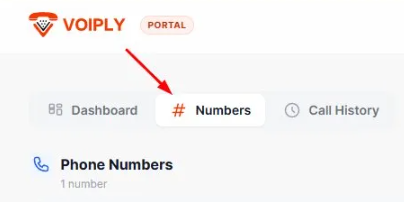
Step 2: Click "New Port"
On the Numbers page, click the orange + New Port button. 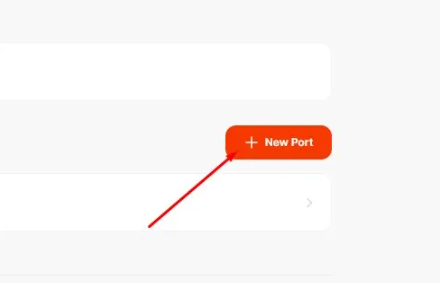
Step 3: Enter Your Phone Number
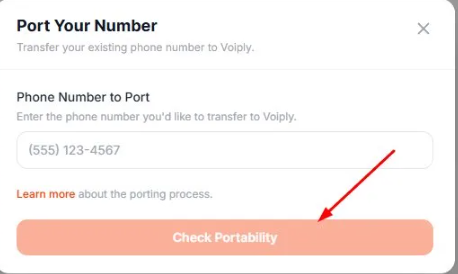
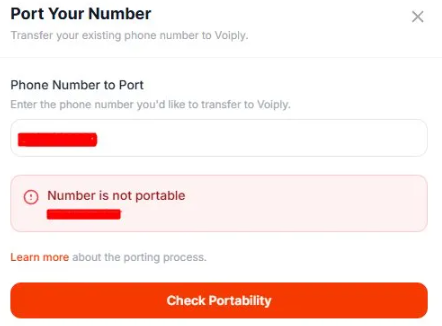
In the Port Your Number window, type in the phone number you want to transfer to Voiply, then click Check Portability.
Step 4: Check If Your Number Is Portable
Voiply will check whether your number can be ported.
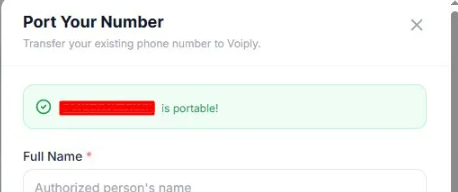
If your number is portable, you'll see a green confirmation message and a form will appear to continue with your request.
If your number is not portable, you'll see a "Number is not portable" message. Unfortunately, not all numbers can be transferred. Click the Learn more link in the window to find out why and what your options are.
Step 5: Fill Out the Port Request Form
If your number is portable, fill in the following information:
- Full Name – The name on the account with your current provider
- Company – Optional
- Billing Address – The address on file with your current provider
- Address 2 – Optional (apartment, suite, unit, etc.)
- City, State, and Zip
- Country – Defaults to United States
- Account Number – Optional, but may be required depending on your current provider
- PIN / Passcode – Optional, if your current provider requires one
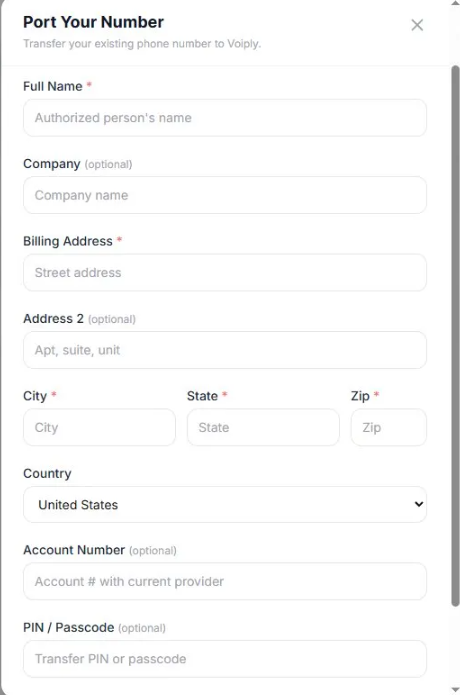
Also, double check that everything you enter matches what's on file with your current carrier exactly. This is the most common reason a port gets rejected, so it's worth a careful look before you submit.
Step 6: Submit Your Request
Once the form is filled out, click Submit Port Request. 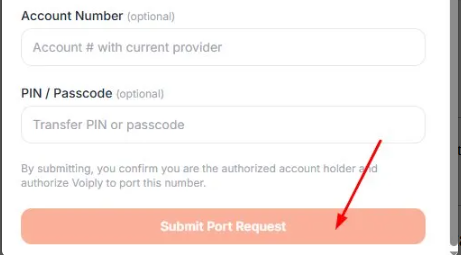
By submitting, you confirm that you are the authorized account holder and that you authorize Voiply to port the number on your behalf.
Also, keep your current phone service active and your bill paid until the transfer is done. If you cancel too early, the port could fail again and you could lose the number.
What Happens Next?
After submitting, Voiply will process your port request. Porting timelines vary depending on your current carrier, but you can check the status of your request at any time from the Numbers tab in your portal.
For more details on tracking your request or making updates if something needs to be corrected, see: How to Check and Update Your Port Request
If you have questions, contact our support team.