
Quiet Time lets you pick the hours when the phone should not ring. During those hours, called a quiet window, incoming calls go straight to voicemail instead of ringing. It is a simple way to keep the phone quiet during school, homework, or bedtime.
When Quiet Time is off, calls always ring. When it is on, any call that comes in during a quiet window goes to voicemail, even from your allowed contacts
How to Log In to Your Voiply Portal
- Go to voiply.com and click Login.
- Enter your 10-digit Voiply phone number, then click Continue.
- Check the masked email shown on the screen. Voiply will send a secure Magic Link to that email address.
- Open the email from Voiply with the subject Use this link to sign in, then click the Sign in link button. You will be logged in automatically.
For more details, see How to Log In to Your Voiply Portal.
How to Open Quiet Time
- Once you are logged in, scroll down to the Quick Actions section.
- Click the Quiet Time tile (Send calls to voicemail during set hours) to open the Quiet Time screen.

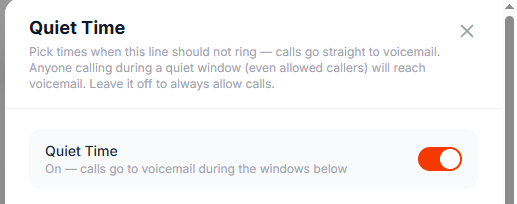
Turn Quiet Time On or Off
At the top of the screen, use the Quiet Time toggle.
- Toggle it on to send calls to voicemail during the windows you set.
- Toggle it off so calls always ring.
Set Your Quiet Hours
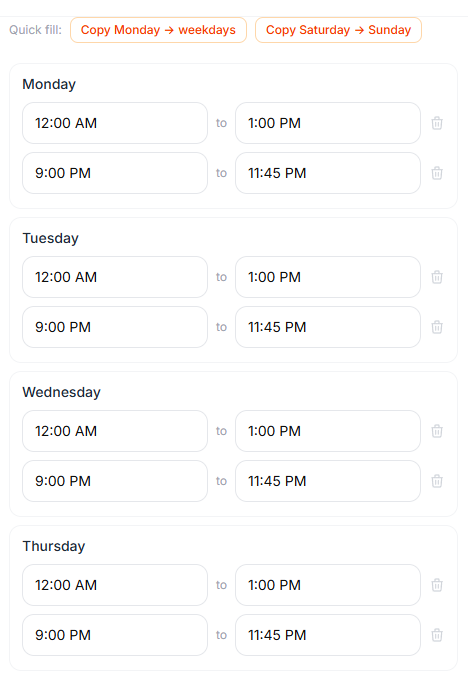
When Quiet Time is on, you can set the hours the phone should stay quiet for each day.
- Find the day you want to set.
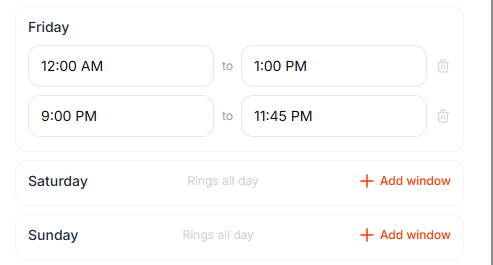
- Click Add window.
- Set the start time and end time by clicking each time field and choosing the time. This is the window when calls will go to voicemail.
You can add more than one quiet window to a day, for example one in the morning and another at night. Just click Add window again and set the times.
A day with no windows shows Rings all day, which means calls will ring all day on that day.
Copy Hours Quickly
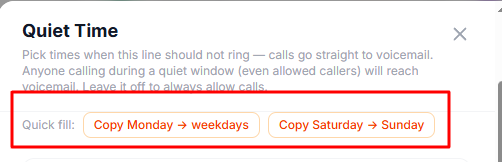
To save time, use the Quick fill buttons at the top:
- Copy Monday to weekdays copies Monday's windows to Tuesday through Friday.
- Copy Saturday to Sunday copies Saturday's windows to Sunday.
Remove a Quiet Window
To remove a window, click the trash can icon next to the window you want to delete. 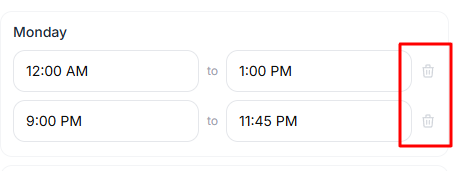
Save Your Settings
When your quiet hours look right, click Save to apply them.
Times use your account's local time, which is shown at the bottom of the screen. 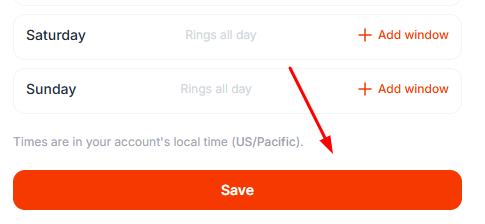
A Few Things to Remember
- When Quiet Time is on, any call during a quiet window goes to voicemail, even from your allowed contacts.
- When Quiet Time is off, calls always ring.
- A day with no quiet windows rings all day.
- Times use your account's local time, shown at the bottom of the Quiet Time screen.
Need Help?
If you have questions or need a hand, Voiply Support is here for you.
📞 Support: 1-844-486-4759 ✉️ support@voiply.com
For all the ways to reach us, see Contact Voiply Support. To submit and track a help request right from your portal, see How to Create and Manage Support Tickets in Your Voiply Portal.