
Step 1: Log In to Your Account Portal
- Open your web browser and go to the Voiply Account Portal.
- Enter your login credentials and sign in.
Step 2: Open Voicemail Settings
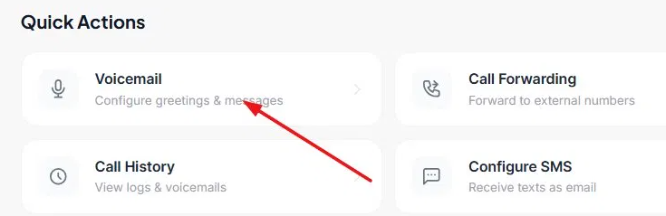
- Scroll down to the Quick Actions section.
- Click Voicemail (Configure greetings & messages).
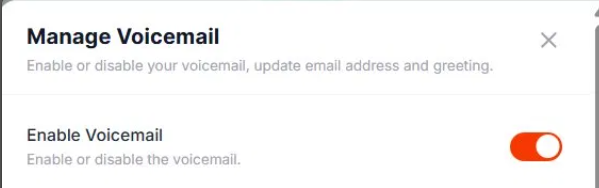
Step 3: Enable or Disable Voicemail
- Use the Enable Voicemail toggle to turn voicemail on or off.
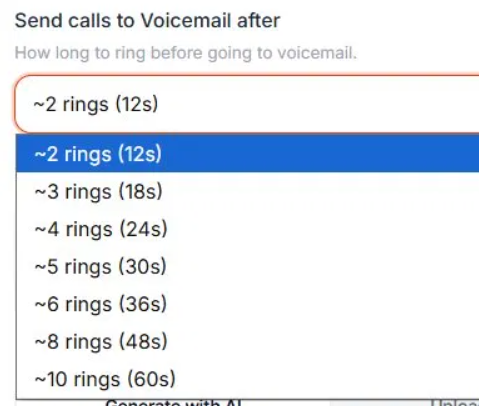
Step 4: Set How Long to Ring Before Voicemail Picks Up
- Under Send calls to Voicemail after, use the dropdown to choose how many rings before the call goes to voicemail.
- Options range from ~2 rings (12s) to ~10 rings (60s).
Step 5: Set Up Your Voicemail Greeting
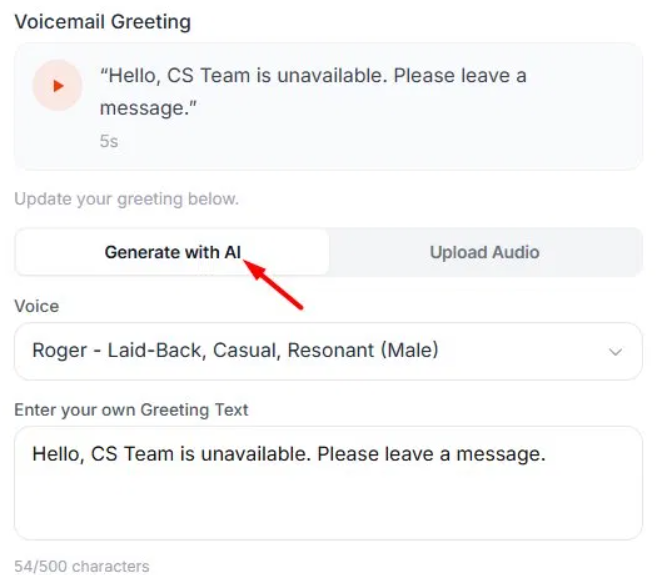
Your current greeting is shown in the Voicemail Greeting section — click the play button to preview it. To update it, choose one of the two options below.
- Option 1 – Generate with AI
- Click the Generate with AI tab.
- Select a voice from the Voice dropdown.
- Type your greeting message in the text field (up to 500 characters).
- Click Update Greeting to save and apply.
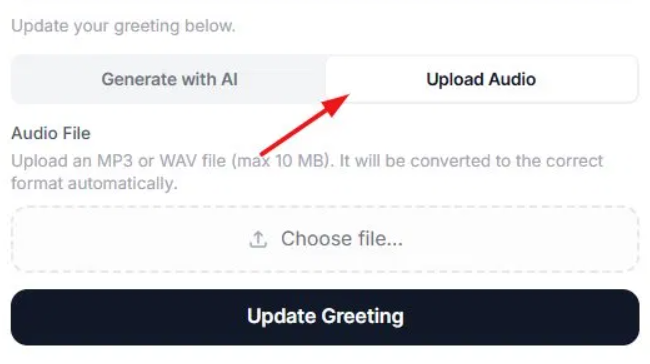
- Option 2 – Upload Audio
- Click the Upload Audio tab.
- Click Choose file and select an MP3 or WAV file from your device (max 10 MB). It will be converted to the correct format automatically.
- Click Update Greeting to save and apply.
Step 6: Set Your Voicemail Notification Email
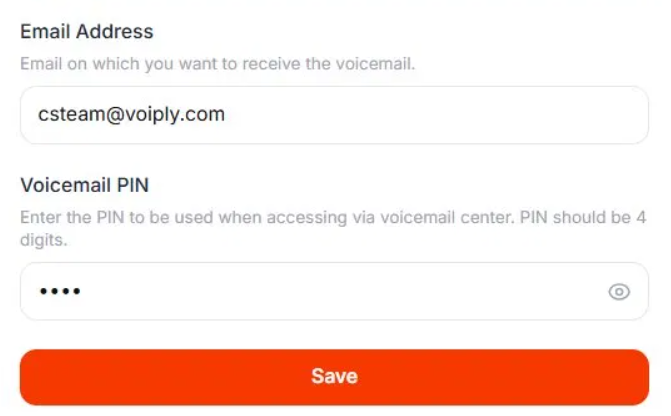
- Under Email Address, enter the email address where you want to receive voicemail recordings and transcripts.
Step 7: Set Your Voicemail PIN
- Under Voicemail PIN, enter a 4-digit PIN. This is used to access your messages through the voicemail center.
Step 8: Save Your Changes
- Click Save to apply all your settings.
Your voicemail is now set up and ready to use! If you need further assistance, feel free to contact Voiply Support.