Before You Begin
You will need to be logged in to your Voiply portal. If you have not logged in yet, see How to Log In to Your Voiply Portal for steps.
Navigating to Call History
Once you are logged in to your portal:
- Look at the navigation bar at the top of the page.
- Click Call History.
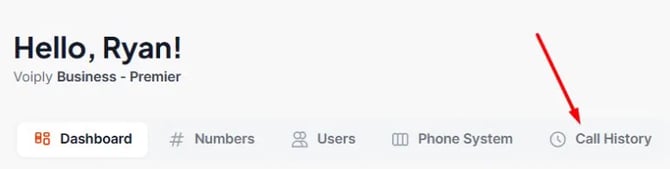
You will land on the Call History page.
What You Will See
At the top of the Call History page, you will see a summary of your recent activity. By default, this shows the past 7 days and includes:
- Total calls and total minutes
- Calls in (incoming)
- Calls out (outgoing)
- Missed calls
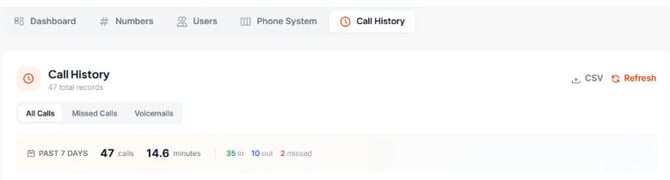
Below the summary, there are three tabs to filter your records:
- All Calls — shows every call in the selected period
- Missed Calls — shows only calls that were not answered
- Voicemails — shows voicemail records
Choosing a Date Range
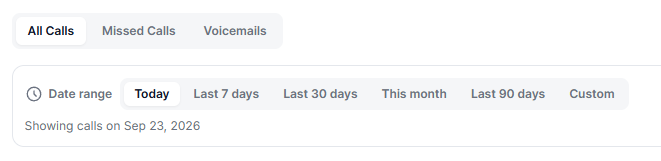
Below the tabs, you will see the Date range bar. Click an option to change which calls you see:
- Today
- Last 7 days
- Last 30 days
- This month
- Last 90 days
- Custom: pick your own start and end dates
Just below the options, the page shows the exact dates you are viewing. For example, "Showing calls from Jun 26, 2026 to Sep 23, 2026."
Your Weekly Summary
Below the date range, you will see a quick summary of your calls from the past 7 days. It shows how many calls you had and how many minutes you spent on them. This summary always covers the last 7 days, even if you pick a different date range above.
Blocking a Number
You can block a number right from your call history. On any call in the list, click Block on the right side of the row. This adds the number to your block list, so future calls from it will not come through.

This is a quick way to stop unwanted callers without having to look up the number separately.
Exporting Your Call History
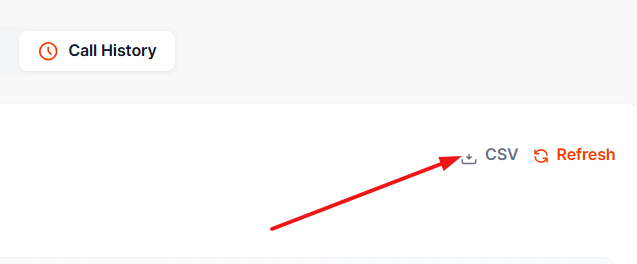
You can download your call records as a spreadsheet. Click CSV in the top right corner of the Call History page. This is handy if you need to share or review your call data outside of the portal.