
Most users sign in to the Voiply Mobile App with a link sent to their email. Office manager and admin accounts work differently. You will sign in with your portal username and password instead.
This guide is for office managers on a Voiply Premier or Advanced plan. It shows you every screen you will see, from installing the app to your first sign-in. The steps work the same on both iPhone and Android.
Before you start, have these ready:
- The username and password you use for your Voiply web portal
- Your phone or tablet
- Your authenticator app, if your account uses an extra security code
Do not worry if you cannot remember your login. Step 3 below shows you how to reset your password or get help from our team.
Step 1: Install the Voiply Mobile App
Install the app on your phone or tablet first.
- Apple (iPhone or iPad): Download on the App Store
- Android: Download on Google Play
Once it finishes installing, open the app.
Step 2: Choose Portal Login
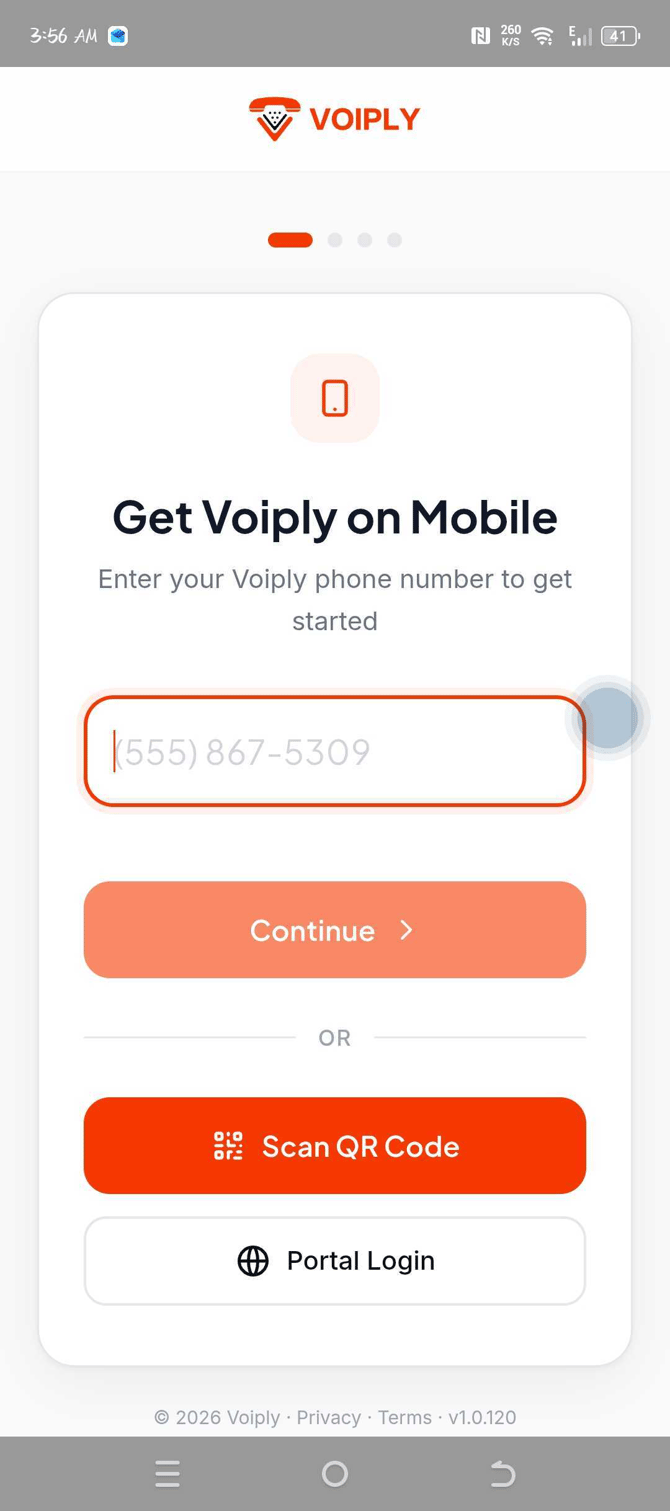
When the app opens, you will see a screen called Get Voiply on Mobile. It asks for a phone number.
Do not enter your phone number here. That option is for regular users only.
Instead, scroll down a little and tap Portal Login at the bottom of the screen.
Step 3: Enter your username and password
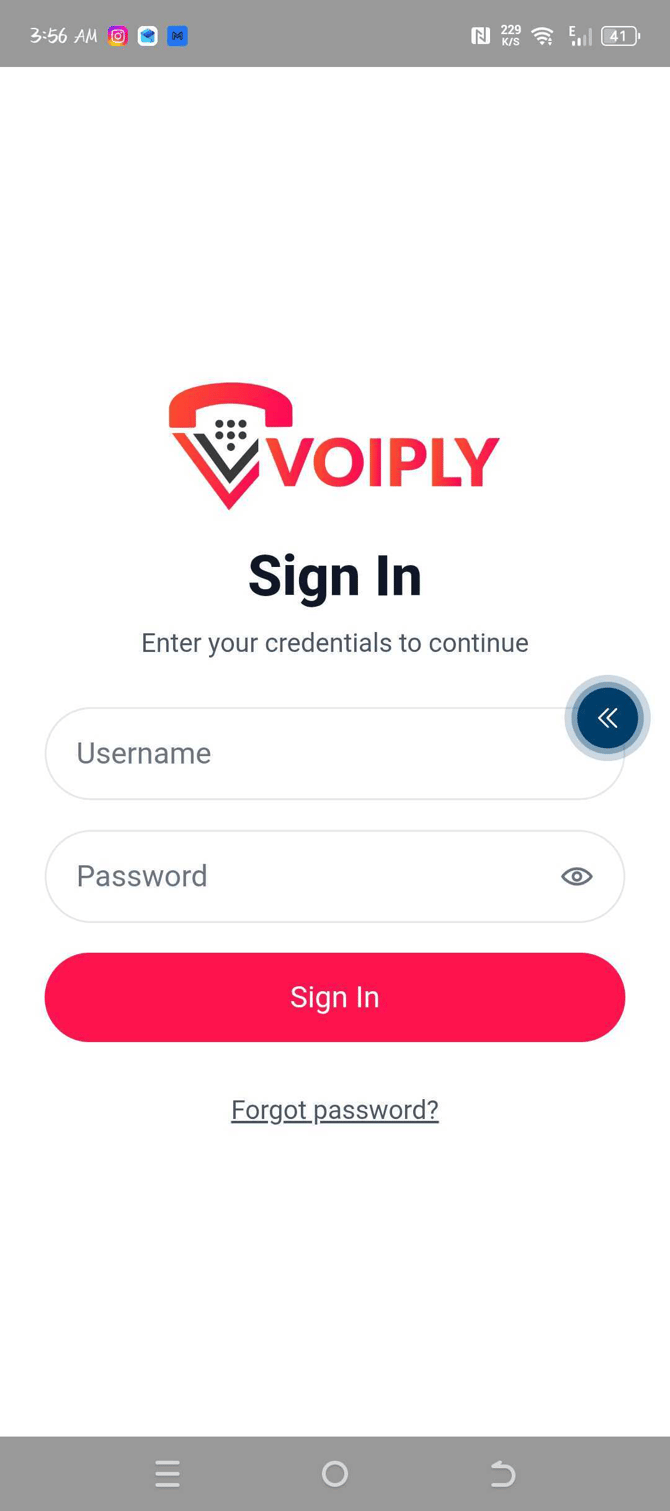
A Sign In screen will open and ask for your credentials. Credentials just means your username and password.
- Tap the Username field and type your Voiply portal username. It usually looks like a number, then the @ symbol, then your company name.
- Tap the Password field and type your password.
- To check that you typed your password correctly, tap the small eye icon on the right side of the password box.
- Tap the red Sign In button.
Forgot your password?
That happens, and it is an easy fix.
- On the Sign In screen, tap Forgot password? below the Sign In button.
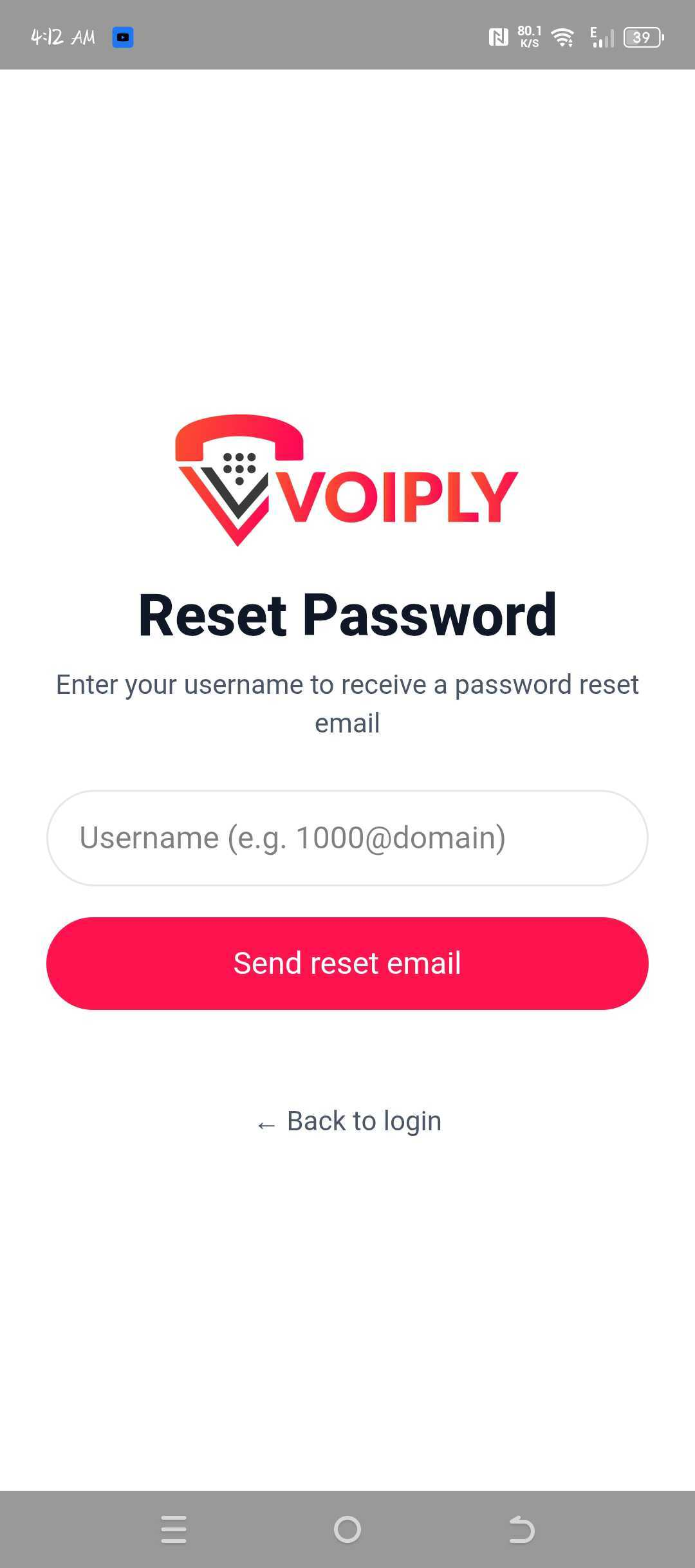
- A Reset Password screen will open. Type your username in the box, then tap Send reset email.
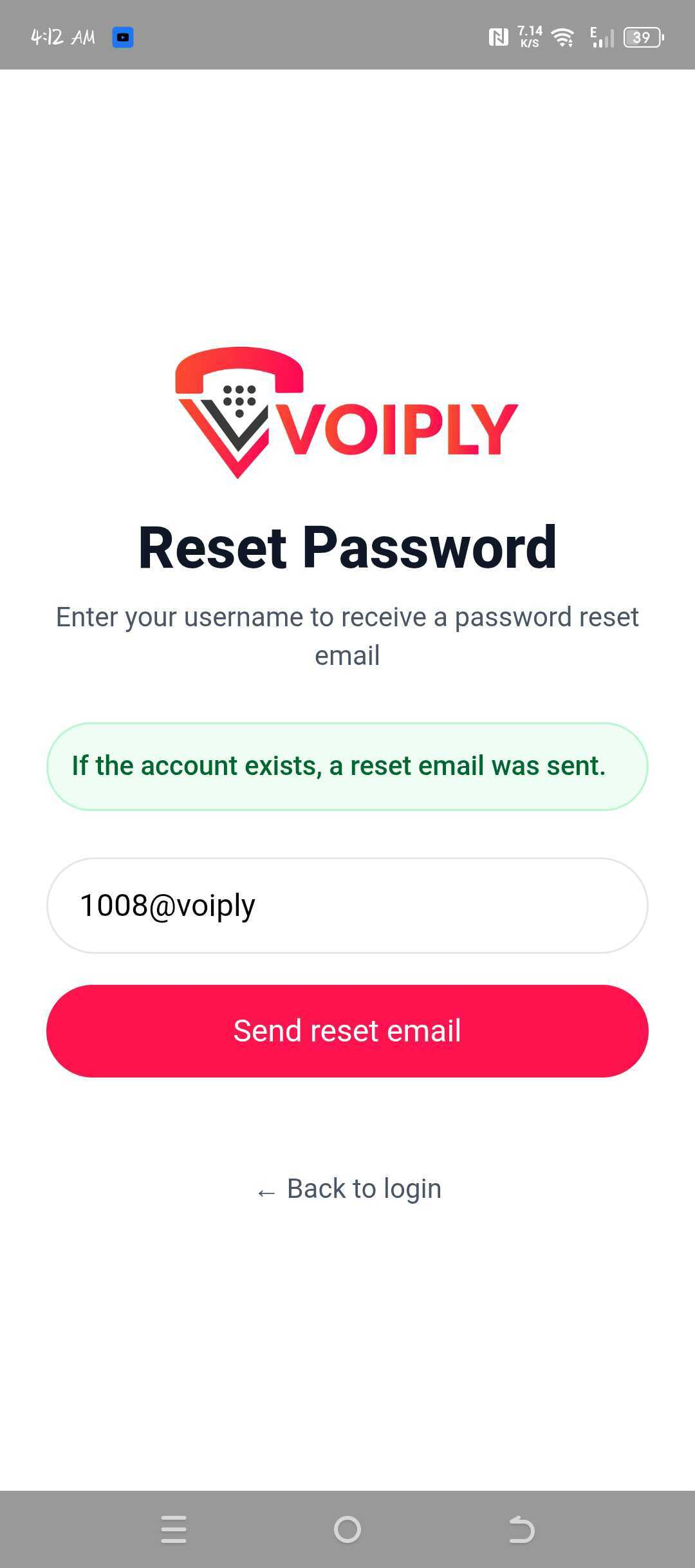
- You will see a green message at the top confirming the reset email is on its way.
- Check your email inbox. Look for a message with the subject line Your password VOIPLYPREMIER recovery.
- Open the email and tap the blue Reset Password button. If the button does not work, you can copy the link below it and paste it into your web browser.
- Follow the steps on the screen to create your new password.
A few things to know:
- The link in the email works for 3 hours. After that it stops working, and you will need to start over from Step 1 above.
- No email yet? Check your spam or junk folder first. Email from us sometimes lands there.
- Still nothing? Give us a call at +1 (844) 843-4175 and we will help you sort it out. We are also happy to look up your username if you are not sure what it is.
Once you have your new password, go back to the app and sign in.
Step 4: Enter your security code, if you use one
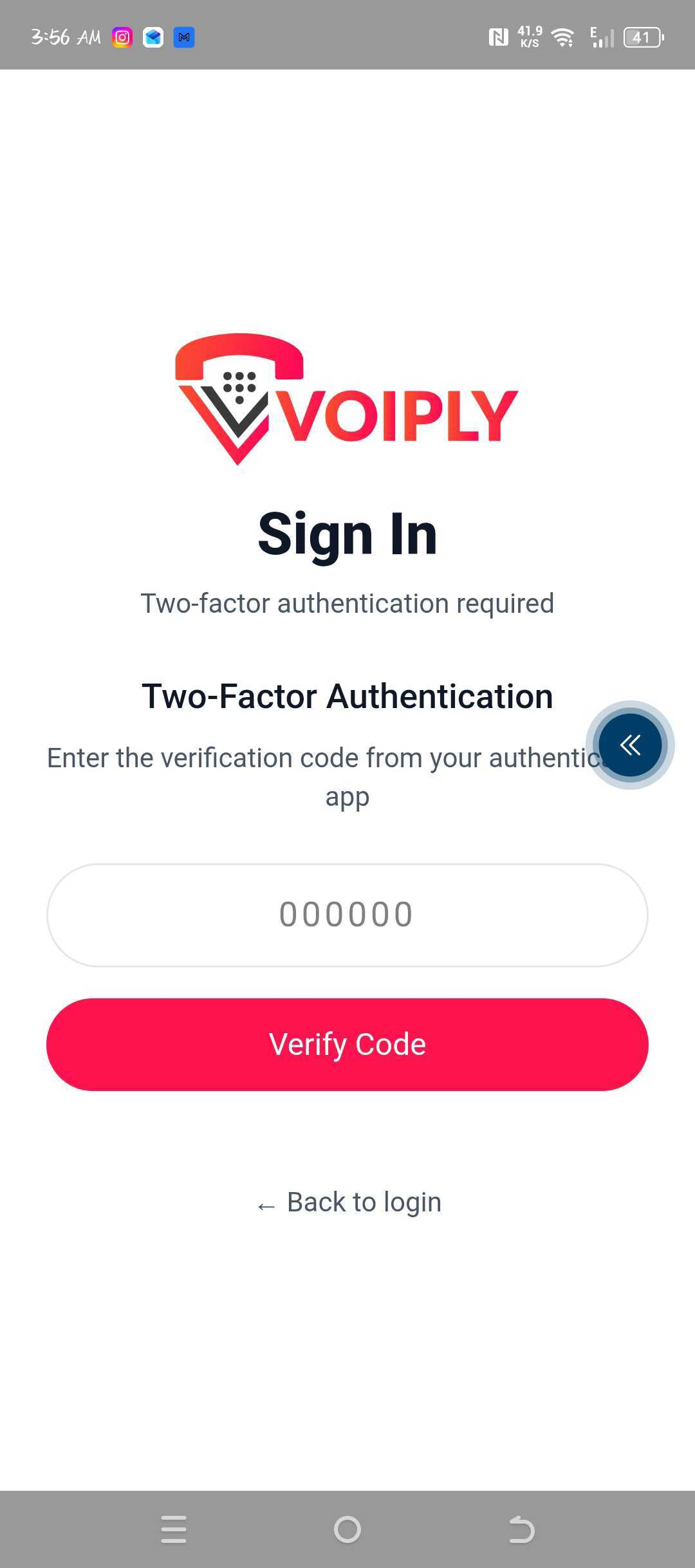
Some accounts use an extra layer of security called two-factor authentication. That is a six digit code that changes every so often, and it comes from an authenticator app on your phone.
If your account uses this, you will see a screen that says Two-Factor Authentication.
- Open your authenticator app and find the six digit code for Voiply.
- Type the code into the box on the Voiply screen.
- Tap the red Verify Code button.
Codes expire after a short time. If yours stops working, go back to your authenticator app and use the new code.
If you do not see this screen, your account does not use a security code. You can move on to the next step.
If you need to start over, tap Back to login at the bottom.
Step 5: Agree to the Terms of Service
The last screen shows Voiply's Terms of Service. You can scroll through and read it.
When you are ready, tap AGREE at the bottom of the screen.
The app will open to the keypad. That means you are signed in and ready to make and take calls.
What about the Scan QR Code button?
You may notice a Scan QR Code button on the first screen. This only works for customers who saved a QR code before our recent app update.
If that is not you, use Portal Login instead. It is the correct choice for all office manager accounts.
✅ Helpful tips
- Your portal username and password are not the same as a regular user's email sign-in. Office managers always use Portal Login.
- If the app says your username or password is wrong, try signing in to your web portal on a computer first. That confirms your login is working.
- Keep your authenticator app on the same phone when you can. It saves you from switching devices during sign-in.
Still need help?
We are happy to help you get signed in.
📞 Call us at +1 (844) 843-4175. We are available 24/7.
💬 Start a chat at voiply.com
📝 How to Create and Manage Support Tickets in Your Voiply Portal