
Key Details
- Who can use this: Any Voiply residential customer with an active phone number
- Cost: Included with your Voiply plan, no extra charge
- Takes effect: Immediately after saving
- Can be changed: Yes, you can update or remove the email address at any time
Step-by-Step Instructions
Step 1: Log In to Your Voiply Portal
Sign in to your account at voiply.com.
Step 2: Open Configure SMS
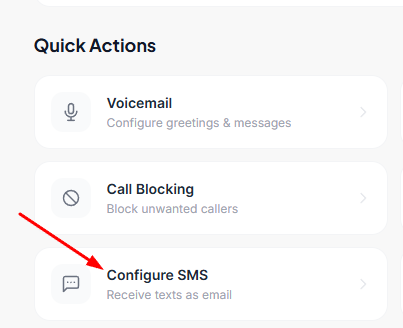
Once you are inside the number settings, scroll down to the Quick Actions section.
- Click on Configure SMS
- A window will pop up that says "Receive text messages as email"
Step 4: Enter Your Email Address
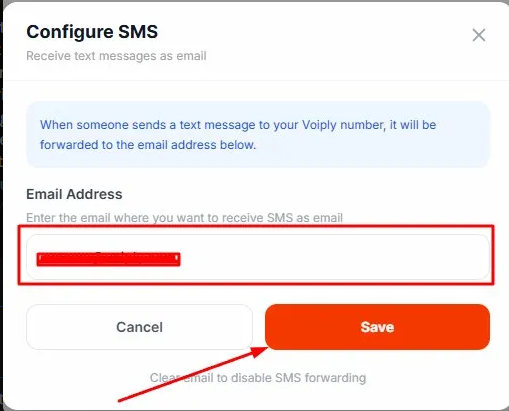
- In the Email Address field, type the email address where you want to receive your text messages
- Double-check that the address is spelled correctly before moving on
Note: When someone sends a text to your Voiply number, it will be forwarded to the email address you enter here.
Step 5: Save Your Settings
- Click the Save button to turn on SMS forwarding
- Your changes take effect right away
Want to turn it off? You can disable SMS forwarding at any time by clearing the email address field and clicking Save again. A note at the bottom of the window also reminds you of this option.
Good to Know
- Only SMS text messages are forwarded. Voice calls and voicemails are not affected.
- You can update your email address at any time by going back to Configure SMS and entering a new address.
- If you stop receiving forwarded messages, check your spam or junk folder and make sure the email address on file is correct.
Summary
Setting up SMS to Email takes just a few clicks. Head to your Numbers settings, open Configure SMS from the Quick Actions menu, enter your email address, and hit Save. After that, any text sent to your Voiply number will land right in your inbox.