
The Voiply Desktop App lets you make and take your business calls right from your computer. This guide walks you through the full setup. You will download the app, install it, sign in, and place your first call. The steps work on both Windows and Mac.
This article is for customers on a Voiply Premier plan. How you sign in depends on your account type, so we cover both regular users and office managers below.
What you'll need
- Your Voiply phone number
- The email address on your Voiply account (for most users)
- About 10 minutes
Step 1: Download the app
Pick the version that matches your computer.
Windows
- Download the Voiply Desktop App for Windows.
- The file will save to your Downloads folder.
Mac
Macs come in two types, and each one needs its own version. The right choice depends on the chip inside your Mac.
- Apple Silicon (M1, M2, M3, or M4): Download for Apple Silicon
- Intel: Download for Intel
Not sure which Mac you have? Here is how to check:
- Click the Apple menu in the top-left corner of your screen.
- Choose About This Mac.
- Look for the line that says Chip or Processor.
- If it says Apple M1, M2, M3, or M4, choose the Apple Silicon version. If it shows an Intel processor, choose the Intel version.
Step 2: Install the app
Windows
- Open the file you downloaded (voiplyonline.exe).
- If Windows asks for permission to make changes, click Yes.
- Follow the prompts to finish installing.
- When it is done, open Voiply Desktop.
Mac
- Open the file you downloaded (the .pkg file).
- Follow the prompts in the installer.
- The app installs to your Applications folder as Voiply Desktop.
- Open Voiply Desktop from your Applications folder or from Launchpad.
Step 3: Sign in to the app
When you open the app, you will see the sign-in screen. Enter your Voiply phone number, then click Continue.
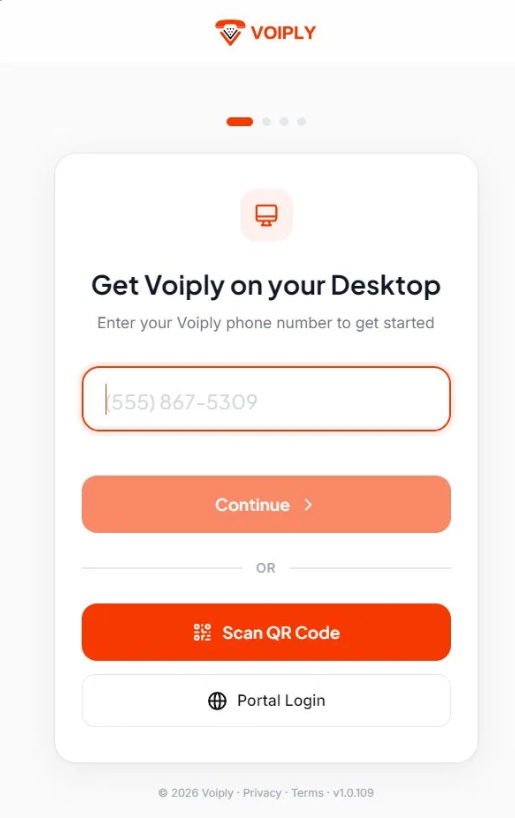
What happens after you click Continue depends on your account type.
If you're a regular user
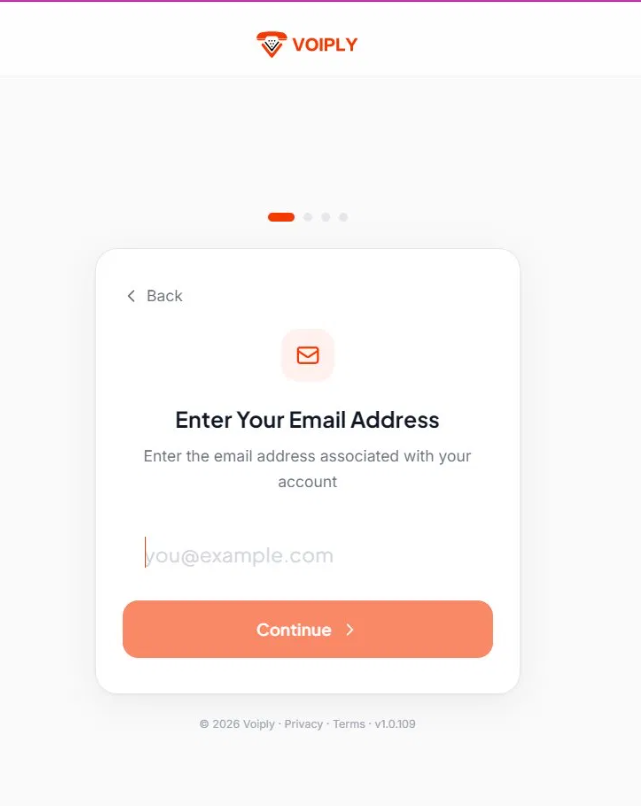
- After you click Continue, the app asks for the email address on your account.
- Type your email, then click Continue.
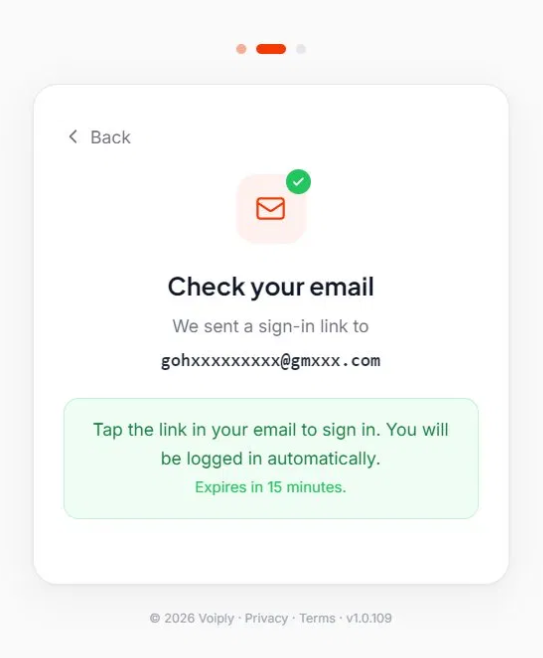
The link expires in 15 minutes. If it runs out before you use it, click Back on the app and request a new one.
If you're an office manager or admin
Magic link sign-in is not available for admin accounts. Sign in with your portal login instead.
- On the sign-in screen, click Portal Login.
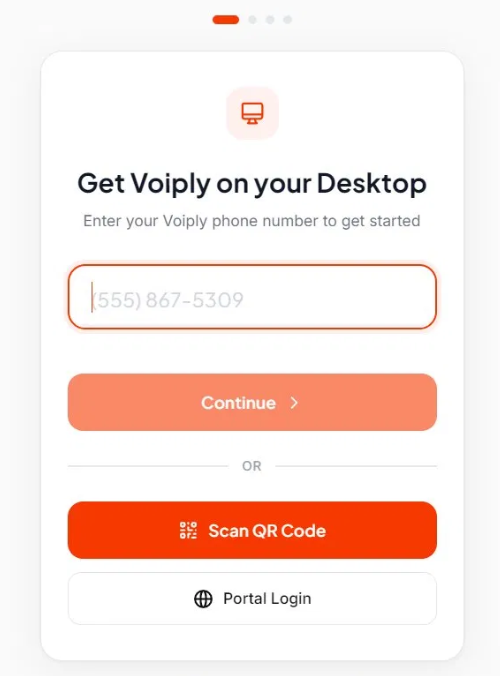
- Enter the same username and password you use for your Voiply web portal, then click Sign In.
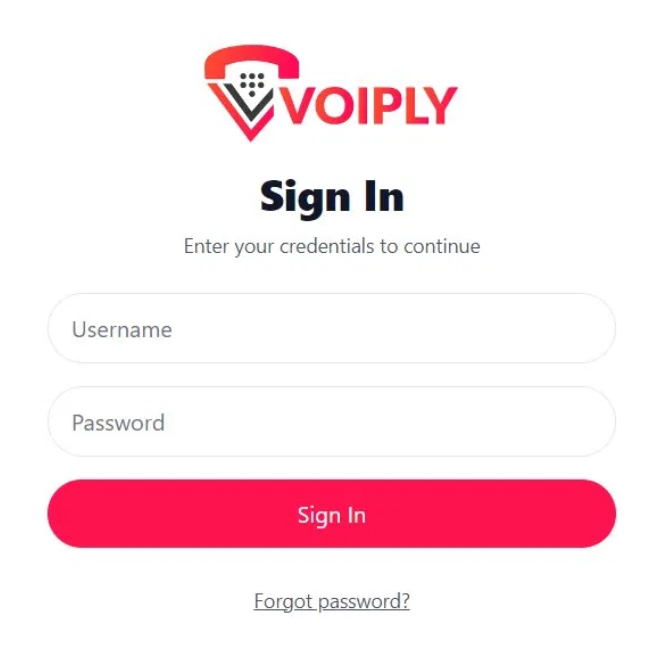
3. If your account has two-factor authentication turned on, enter the verification code from your authenticator app, then click Verify Code.
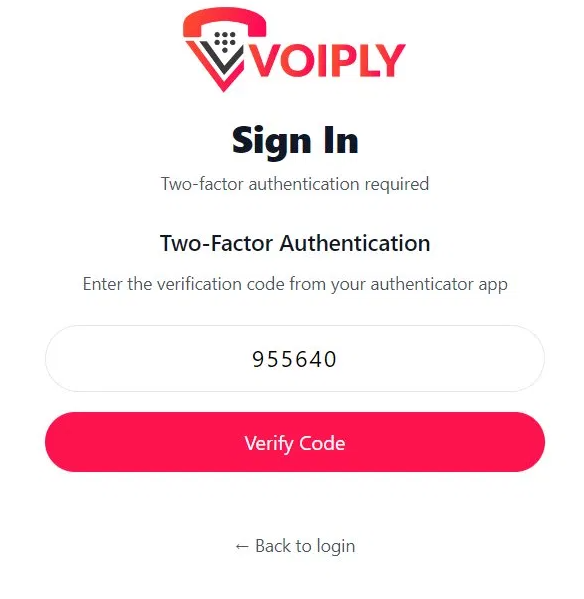
4. The app finishes setting up and signs you in. If you are not sure of your portal login, you can use the Forgot password link on the sign-in screen.
A note on Scan QR Code: You may see a Scan QR Code option on the sign-in screen. This works only for legacy customers who saved their QR code before the recent app update. If that is not you, use Portal Login.
Step 4: Finish first-run setup and make a call
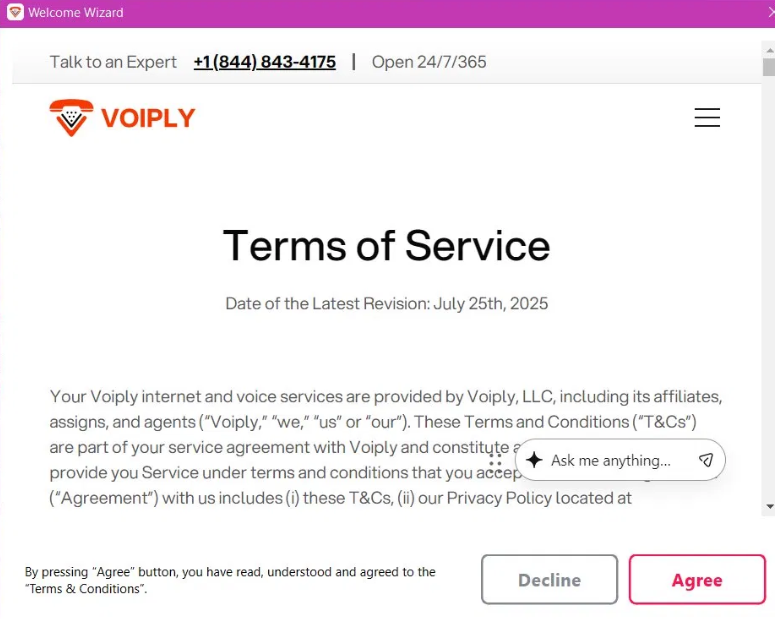
After you sign in, a quick Welcome Wizard helps you finish setup.
- Terms of Service: Read the terms, then click Agree.
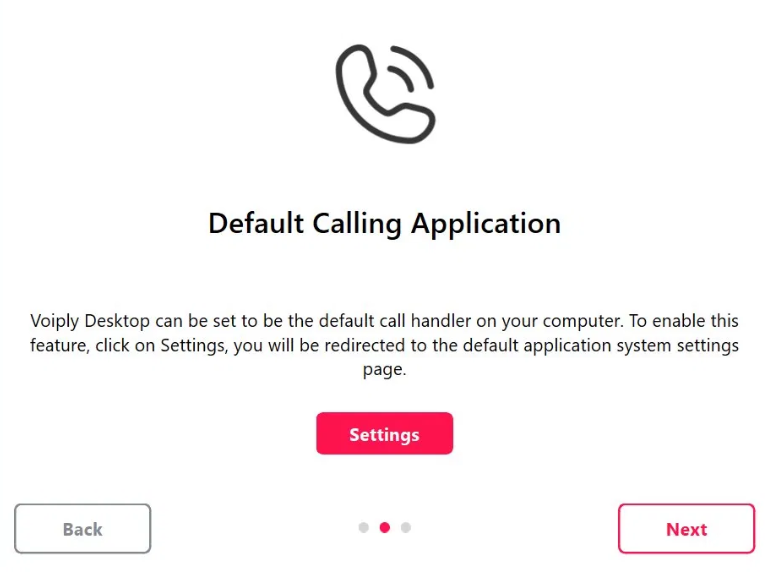
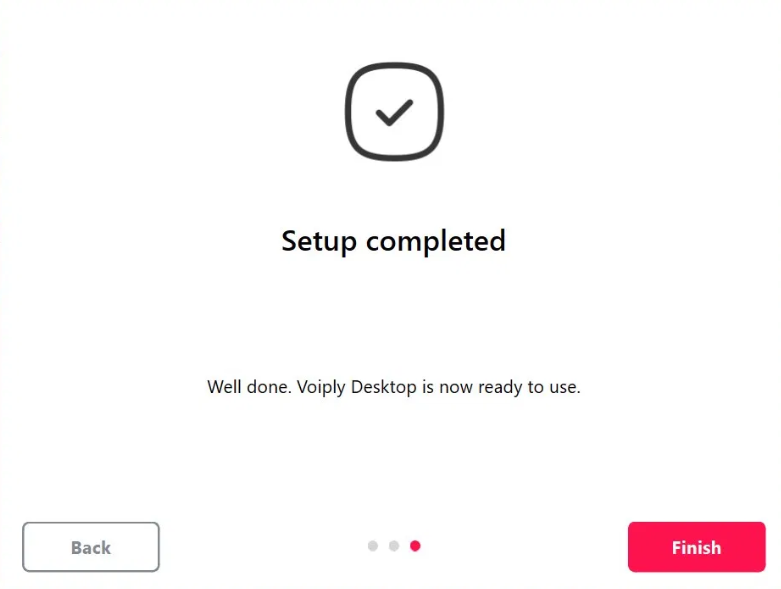
[SCREENSHOT: The Welcome Wizard "Setup completed" screen.]
Now make a test call to be sure everything works:
- Open the keypad in the app.
- Enter a phone number, such as your cell phone.
- Start the call and check that you can hear and be heard. If your computer asks for permission to use your microphone, choose Allow.
Need help?
If you get stuck, we are happy to help.