
You can turn on and manage your AI Assistant directly from the Voiply mobile app. You don't need to log in to the portal to do any of this.
Keep in mind that the AI Assistant is available on Business Starter and Business Premier plans. If you're on a different plan, you'll see a message letting you know it's not available on your current plan.
How to find your AI Assistant in the app
- Open the Voiply app on your phone.
- Tap the team icon in the top right corner of the screen (it looks like two people).
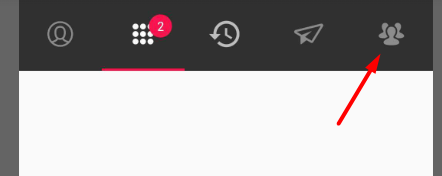
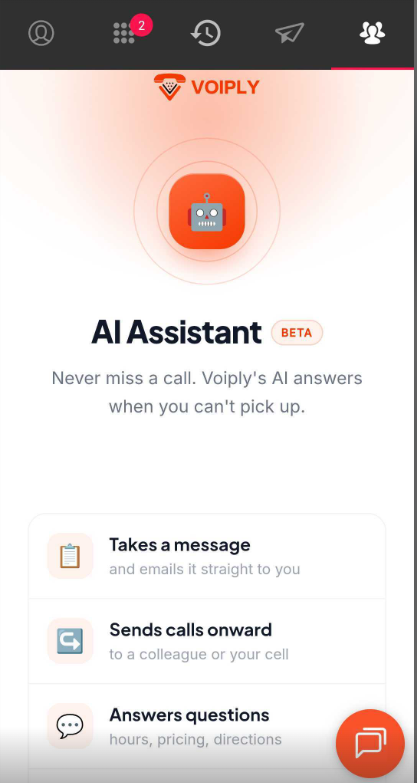
- You'll land on the AI Assistant page.
How to activate your AI Assistant
If your AI Assistant isn't on yet, you'll see an intro screen explaining what it does. Scroll down and tap Activate my assistant to turn it on.
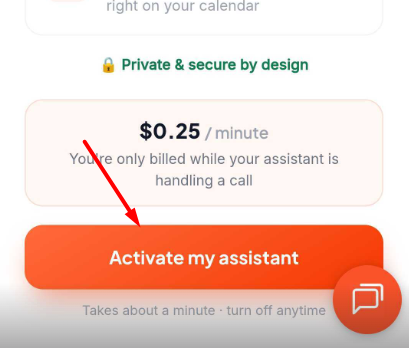
Once activated, it takes a few minutes to get ready while it connects to the phone network. Wait a couple of minutes before testing it with a missed call.
Setting up your email for missed-call messages
After you activate, the first thing to set up is the email address where you want missed-call messages sent.
- Under Email missed-call messages to, enter your email address.
- This is the only required setting. Everything else is optional.
The Overview tab
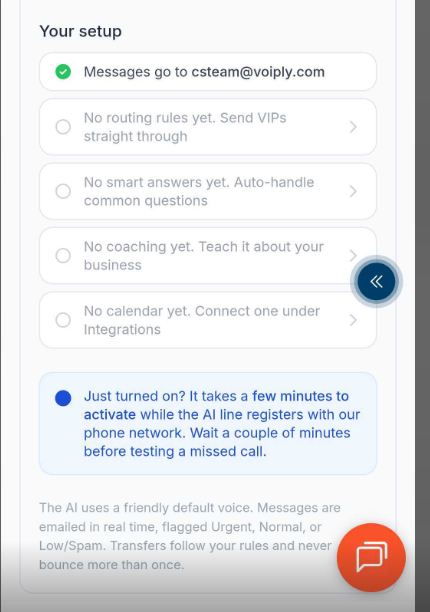
The Overview tab shows your current setup at a glance. You'll see which settings are active and which ones still need to be filled in. Items with a green checkmark are ready. Items without one are optional but available to set up.
You can also turn your AI Assistant on or off anytime using the toggle at the top of the screen. 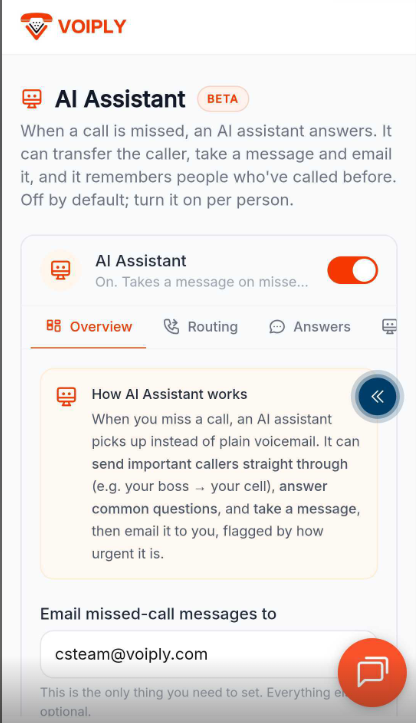
The Routing tab
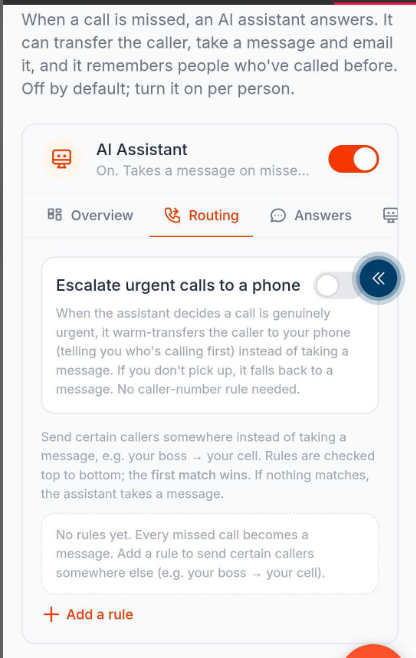
The Routing tab controls what happens when certain callers reach your assistant.
- Escalate urgent calls to a phone — When this is turned on, the assistant will transfer genuinely urgent calls straight to your phone instead of taking a message. It tells you who's calling first before connecting. If you don't pick up, it falls back to taking a message.
- Add a rule — You can also set up specific routing rules, like sending calls from your boss straight to your cell. Rules are checked from top to bottom, and the first match wins. If no rules match, the assistant takes a message.
The Answers tab
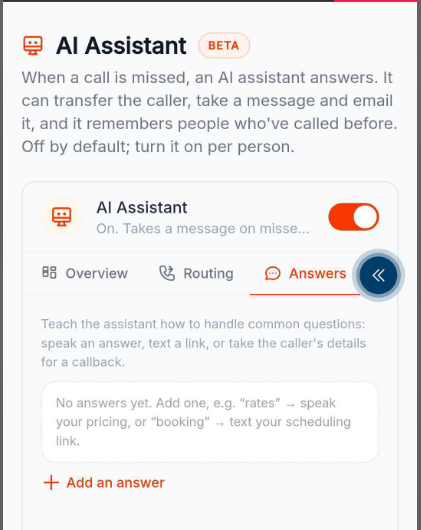
The Answers tab lets you teach your assistant how to handle common questions from callers.
For example, you can set it up so that if a caller asks about your rates, the assistant speaks your pricing out loud. Or if someone asks about booking, it can text them your scheduling link.
Tap Add an answer to get started.
The Coach tab
The Coach tab has two sections.
- Coach your assistant — Type in plain instructions and facts about your business, like your hours, what your business does, or how you want the assistant to speak. You can also add a note whenever a call didn't go the way you wanted, so the assistant can do better next time.
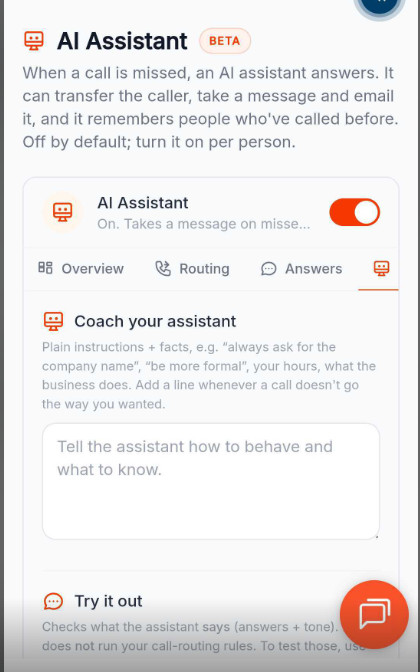
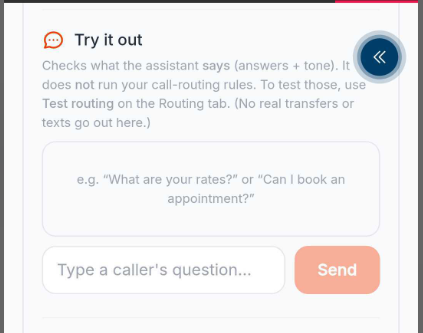
- Try it out — Test what your assistant will say by typing in a sample caller question, like "What are your rates?" or "Can I book an appointment?" This checks the assistant's answers and tone but does not test your routing rules. To test routing, use the Test routing option on the Routing tab. No real transfers or texts go out during testing.
Privacy settings
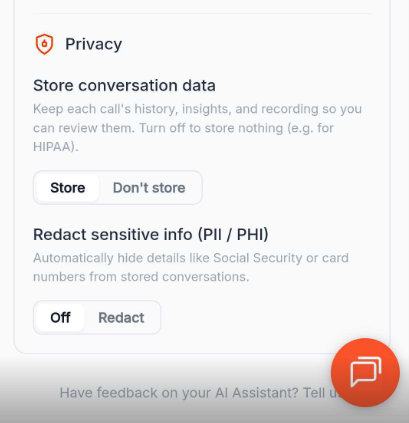
Also on the Coach tab, you'll find two privacy options.
- Store conversation data — Choose whether to keep a record of each call, including its history, insights, and recording. Turn this off if you need to store nothing, for example for HIPAA compliance.
- Redact sensitive info (PII/PHI) — Turn this on to automatically hide details like Social Security numbers or card numbers from stored conversations.
How to turn off your AI Assistant
You can turn your assistant off at any time by tapping the toggle at the top of the AI Assistant screen. Your settings will be saved so you can turn it back on whenever you'd like. 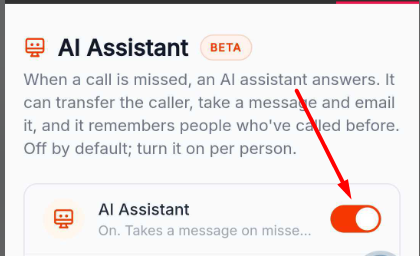
Still need help?
If you run into any issues, our support team is happy to help. Visit support.voiply.com.