🛠 Step 1: Install the Voiply Mobile App
Before logging in, you'll need to install the Voiply Mobile App on your device:
- Android: Download on Google Play
- iOS (Apple): Download on the App Store
You can also download directly from your Voiply Portal — log in and navigate to the Voiply Mobile App section, then click the App Store or Google Play tile. 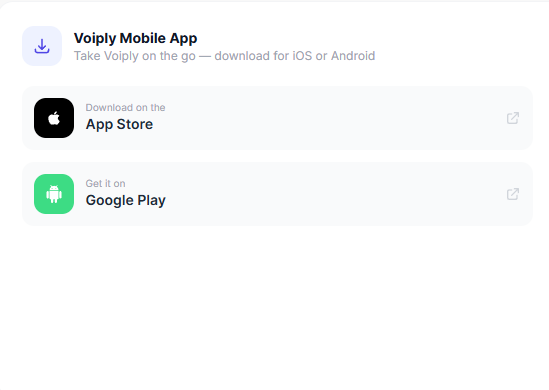
Once installed, proceed to the next step.
🔑 Step 2: Get Your QR Code from the Voiply Residential Portal
You will need a QR code to log in to the Voiply Mobile App. Follow these steps to retrieve it:
- Log in to your Voiply Portal using your account credentials.
- Navigate to the Voiply Mobile App section.
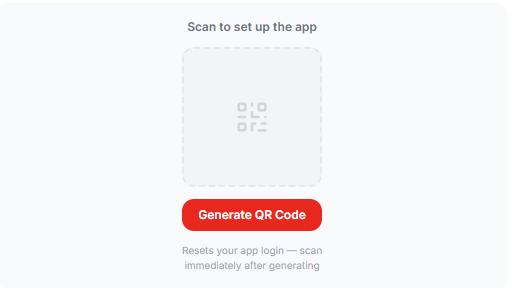
- Click the Generate QR Code button.
- Your QR code will appear on screen — scan it immediately. Generating a new QR code resets your app login, so do not close or refresh the page before scanning.
📱 Step 3: Log in on Android
- Open the Voiply Mobile App.
- Tap "Existing Customers? Scan QR Code" on the login screen.
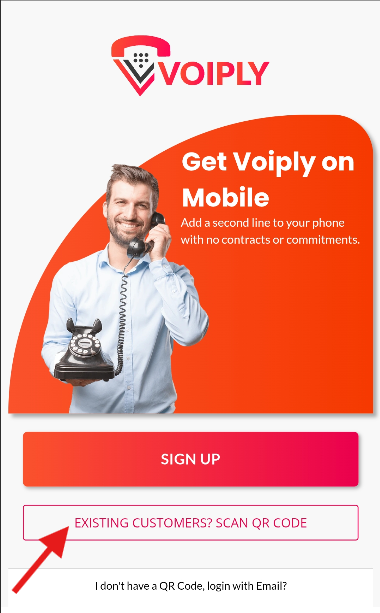
- Use your phone’s camera to scan the QR code from your Voiply Residential Portal.
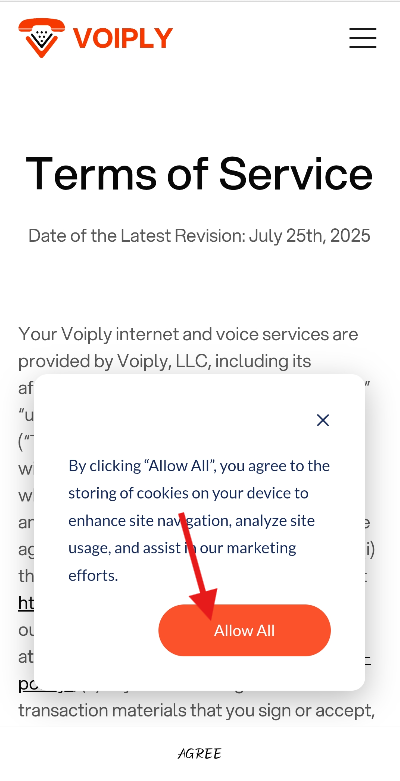
- Tap "Allow All" to enable cookies.
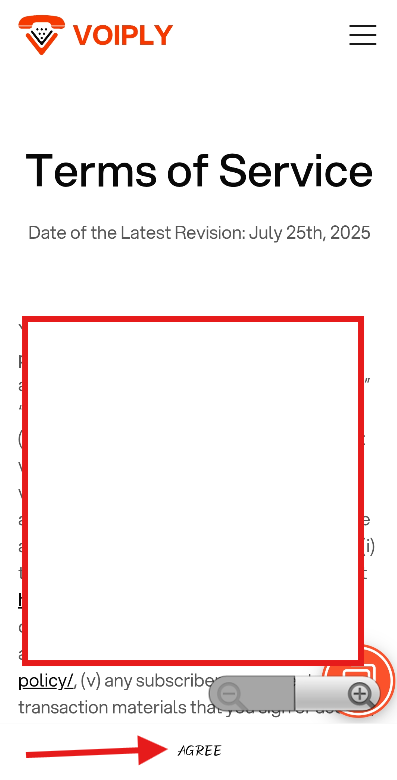
- Tap "Agree" to accept the Terms of Service.
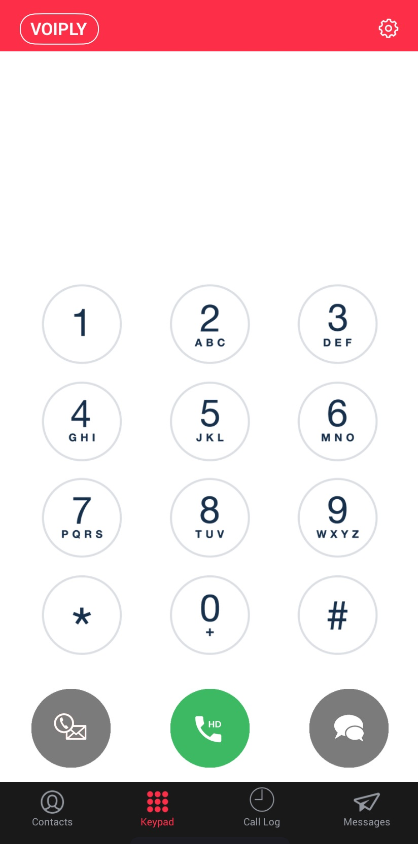
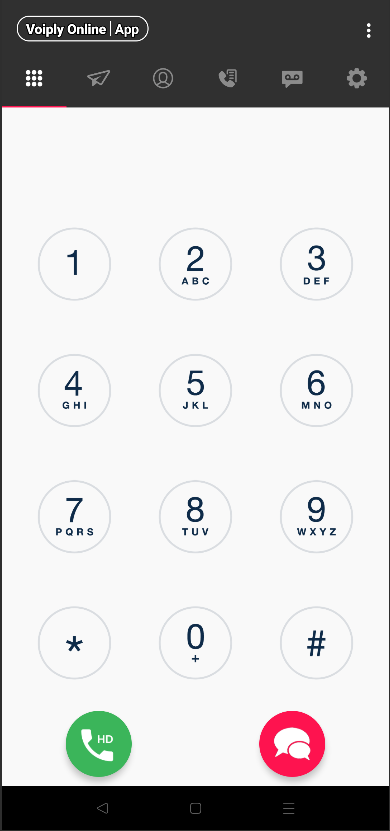
- You will be routed to the dial pad—your Voiply Residential service is now active! 🎉
🍏 Log in on iOS
- Open the Voiply Mobile App.
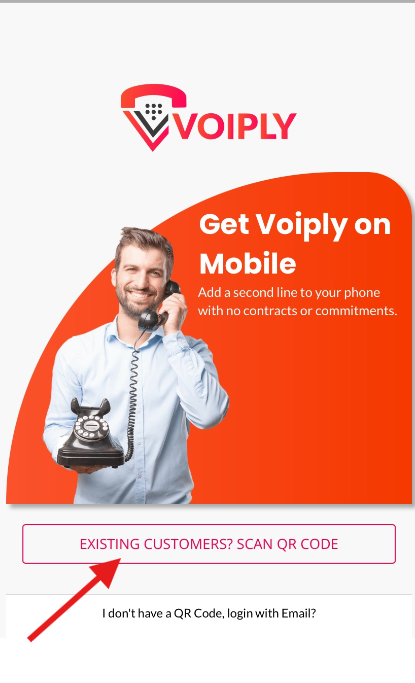
- Tap "Existing Customers? Scan QR Code" on the login screen.
- Use your phone’s camera to scan the QR code from your Voiply Residential Portal.
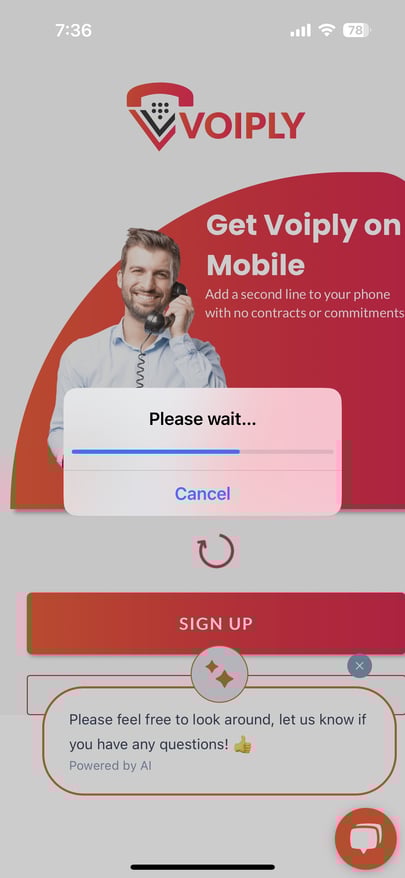
- Wait for the QR code to process.
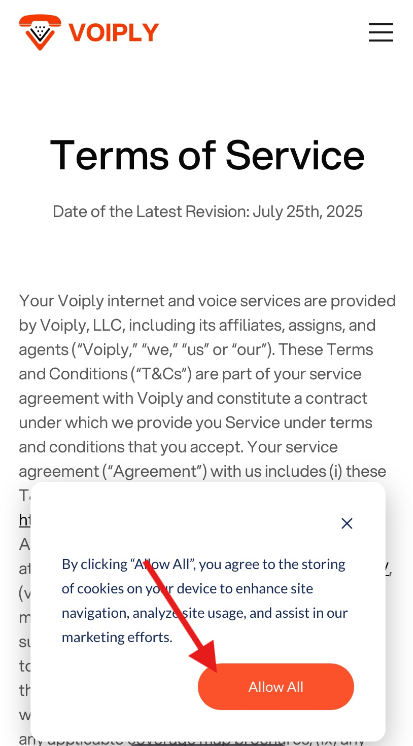
- Tap "Allow All" to enable cookies.
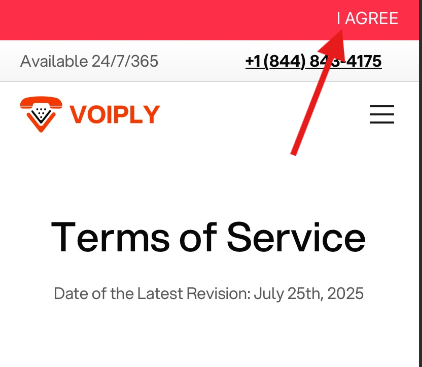
- Tap "Agree" to accept the Terms & Conditions. (Tap "Read" if you’d like to review them first.)
- You will be directed to the dial pad—you’re now ready to make and receive calls! 🎉