
Integrating Voiply with your CRM allows you to automatically log calls, view caller details instantly, and streamline your workflow. Instead of manually tracking conversations, everything syncs directly into your CRM.
This means:
-
Automatic call logging
-
Instant caller information with screen pops
-
Click-to-dial directly from your CRM or websites
-
Improved tracking and team visibility
Ready to connect it? Follow the steps below.
Explore available CRM integrations here:
https://www.voiply.com/integrations
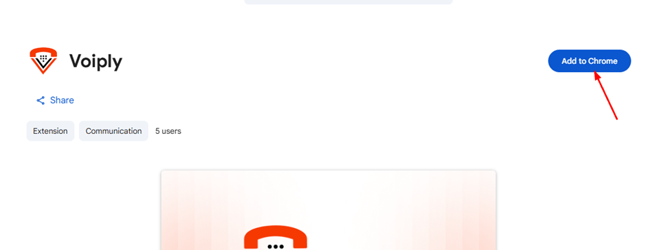
- Open the Voiply Chrome Extension page.
- Click Add to Chrome.
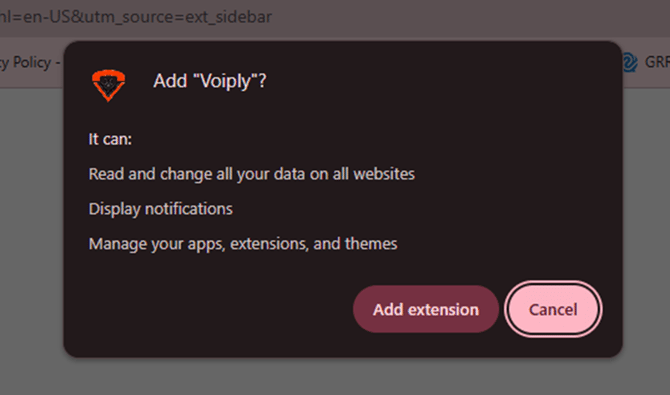
- When prompted, select Add extension.
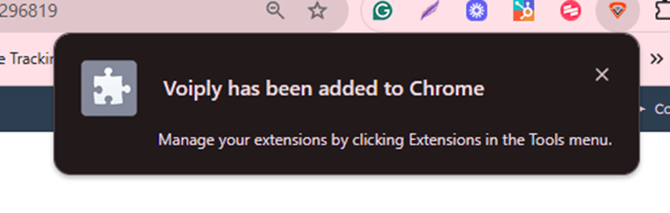
- A confirmation message will appear: “Voiply has been added to Chrome.”
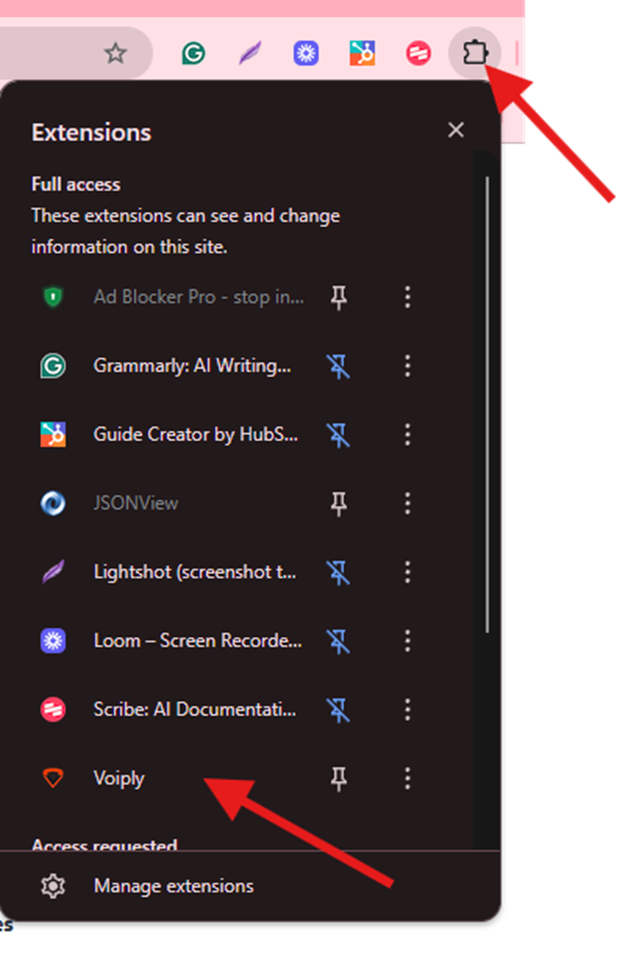
- Click the Extensions icon in Chrome (puzzle piece symbol).
- Find Voiply in the list.
- Click the pin icon so it stays visible in your toolbar.
- Click the Voiply icon in your browser toolbar.
- Enter your Username and Password, then click the arrow to log in.
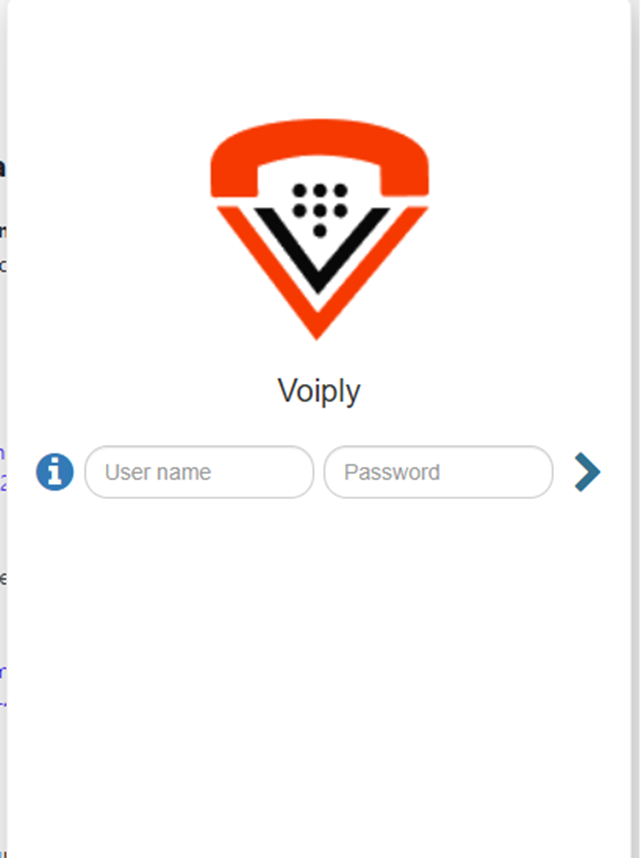
➡️ Note: You can log in using the same credentials in the Voiply PBX portal.
4. Configure Extension SettingsOnce signed in, you’ll see the Settings Panel:
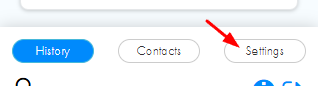
- Screen Pops – Enable to show caller details when receiving calls.
- Logo Click to Call – Enable to make calls by clicking the Voiply logo.
- Link Click to Call – Enable click-to-dial directly from phone numbers on web pages.
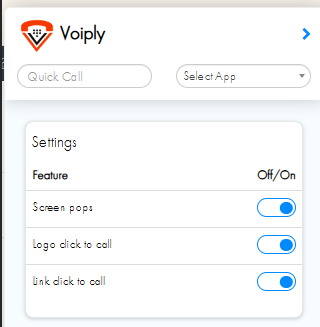
- In the Voiply extension, go to Call Logging.
- Toggle on your preferred CRM (HubSpot, Salesforce, Zoho, Redtail, or Pipedrive).
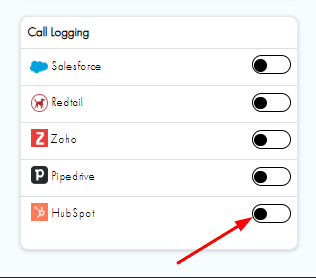
- Follow the login prompt to authenticate with your CRM account.
- Once connected, you’ll see a confirmation message. Example for HubSpot:
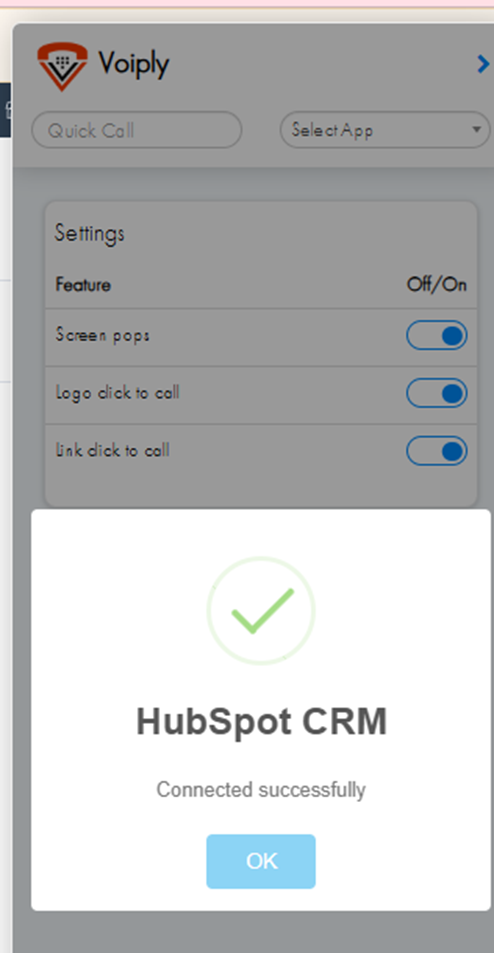
That's it. Your CRM is now linked to Voiply.
What Happens Next?
After setup:
-
Calls made through the Voiply extension are automatically logged in your CRM.
-
Caller information appears instantly with screen pops.
-
You can click phone numbers on websites or inside your CRM to call right away.
Faster calling. Cleaner records. Less manual work.
Troubleshooting
Extension not visible?
Make sure it’s pinned in your Chrome toolbar.
CRM won’t connect?
Double-check your login credentials and try reauthorizing the integration.
Still need help?
Contact Voiply Support and we’ll get you taken care of.
You’re all set.
Voiply is now integrated with your CRM for seamless calling and automatic logging.