
Where to Find the User Account Menu
-
Log in to your Voiply Portal.
-
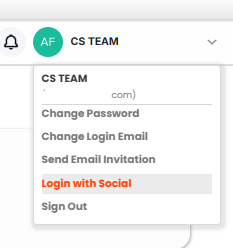
In the top-right corner, click your initials or profile icon.
-
This opens the User Account Menu dropdown.
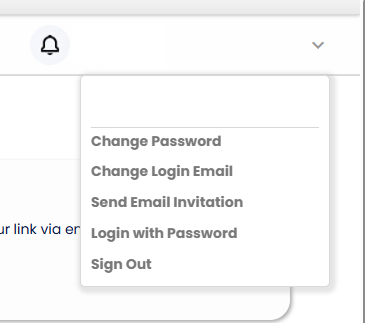
Available Options and What They Do
🔑 Change Password
Use this option to update your portal password at any time.
How it works:
-
Select Change Password from the User Account Menu.
-
A new browser tab will open where you can enter and confirm your new password.
-
Once the password is updated, you will be logged out automatically and prompted to sign back in using the new password.
Important:
-
This follows Step 2 from the guide below.
-
Full instructions are available here:
Tip: Regular password updates help keep your account secure, especially if you’ve logged in from a shared or public device.
✉️ Change Login Email
Need to update the email address you use to log in? You can change it directly from the portal.
Step-by-step:
-
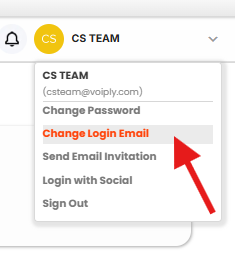
Open the User Account Menu.
-
Select Change Login Email.
-
Enter the 6-digit verification code sent to your current email address to authenticate the request.

-
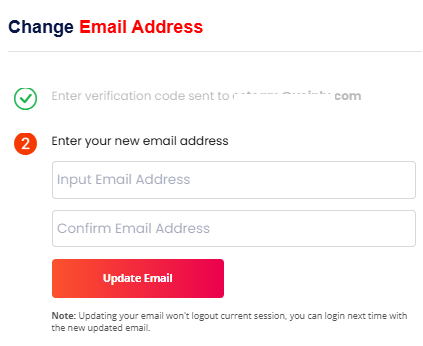
Once verified, enter your new email address and confirm it.
-
Click Update Email.
Good to know:
-
The verification code expires after 15 minutes.
-
You will continue using your current session.
-
The next time you log in, you will use the new email address.
📬 Send Email Invitation (Business Accounts only)
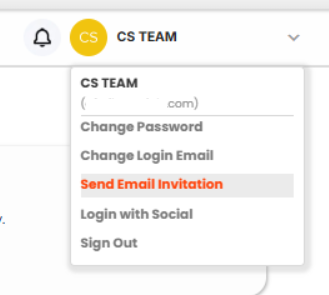
Invite additional users to your Voiply account.
Why it’s useful:
-
Quickly onboard team members or colleagues.
-
Invitations are sent securely via email.
Simply enter the recipient’s email address and send the invite.
🔗 Login with Social
This option allows you to sign in using a connected social or identity provider instead of a traditional password.
Supported login options include:
-
Google
-
Facebook
-
Apple
-
Microsoft Account
-
LinkedIn
How it works:
-
Select Login with Social from the User Account Menu.
-
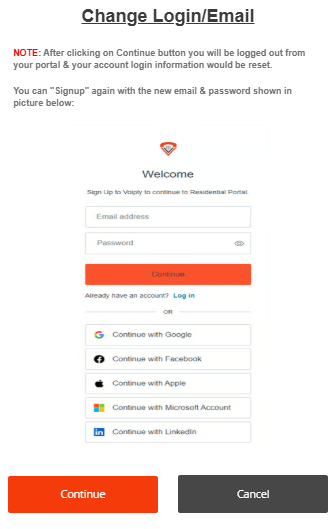
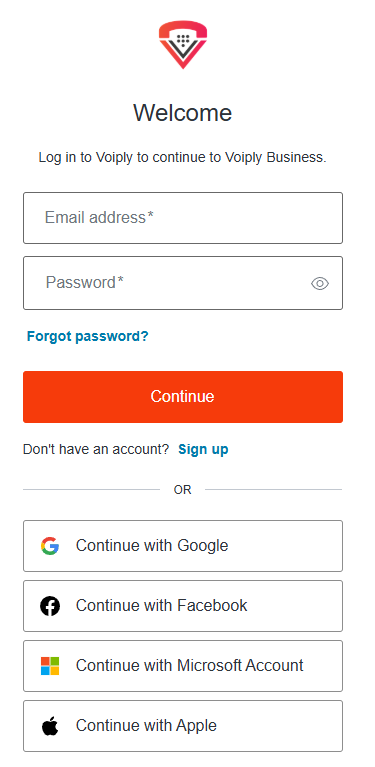
You will be redirected to the Voiply login screen.
-
Choose your preferred provider and complete the sign-in process.
Important:
-
After clicking Continue, you will be logged out of the portal and your login session will reset.
-
Once authenticated, you’ll be signed back in using the selected social account.
Why use it?
-
Faster login experience.
-
No password to remember.
-
Ideal if your account was originally created using a social login.
🚪 Sign Out
Always sign out when you’re finished, especially on shared or public computers.
Why it matters:
-
Protects your account from unauthorized access.
Best Practices
-
Use a strong, unique password.
-
Keep your login email up to date.
-
Log out after each session on shared devices.
-
Invite only trusted users to your account.
Need Help?
If you run into any issues while managing your account settings, Voiply Support is available 24/7.
Use the chat icon in the bottom-right corner of the portal to get help quickly.