
What the Extension Can Do
Click-to-Call
Dial phone numbers directly from webpages and supported CRMs.
Screen Pops
See caller details automatically when a call comes in.
Busy Lamp Field (BLF)
View real-time presence for contacts in your Voiply domain directory.
Speed Dials
Create and manage your own speed dial list.
Call Activity & Logging
Your calls can be logged to supported CRMs after connecting your account.
CRM Integration
Connect the extension to supported CRMs like HubSpot, Salesforce, Zoho, Redtail, and Pipedrive.
Authentication Note
If you update your PBX password, you’ll just need to log out and back into the extension.
1. Install the Voiply Chrome Extension
-
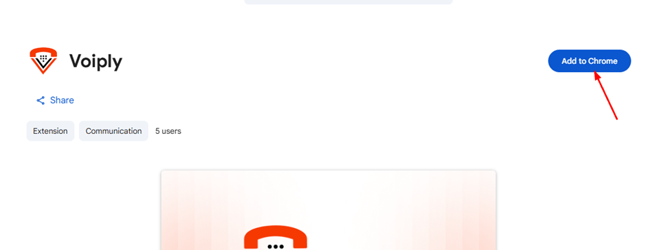
Open the Voiply Chrome Extension page in the Chrome Web Store. https://chrome.google.com/webstore
-
Select Add to Chrome.
-
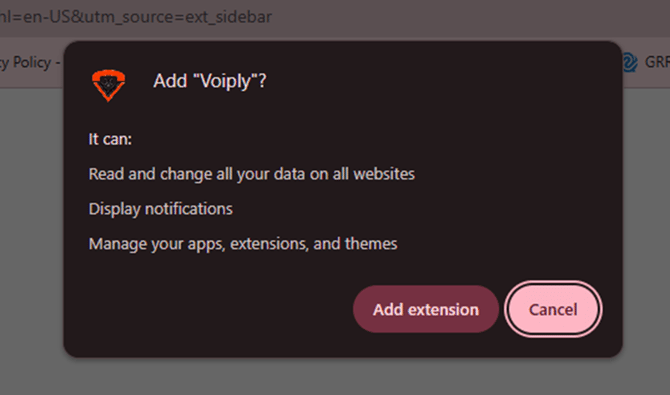
When prompted, choose Add extension.
-
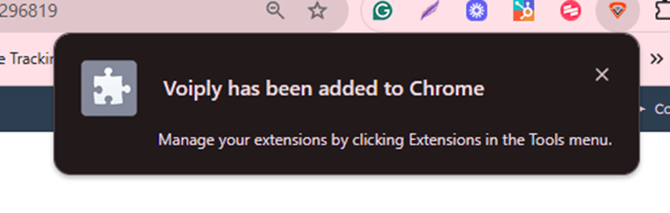
Chrome will confirm when the extension has been added.
2. Access the Extension
-
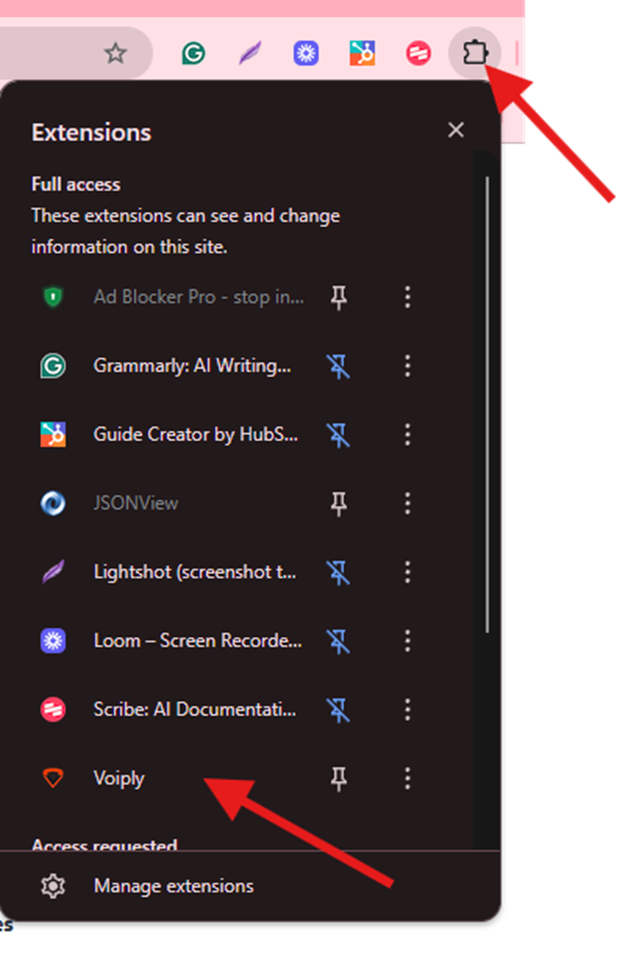
In Chrome, click the puzzle-piece icon for Extensions.
-
Find Voiply in the list.
-
Pin it so the icon appears in your toolbar for quick access.
3. Sign In
-
Click the Voiply icon in your browser toolbar.
-
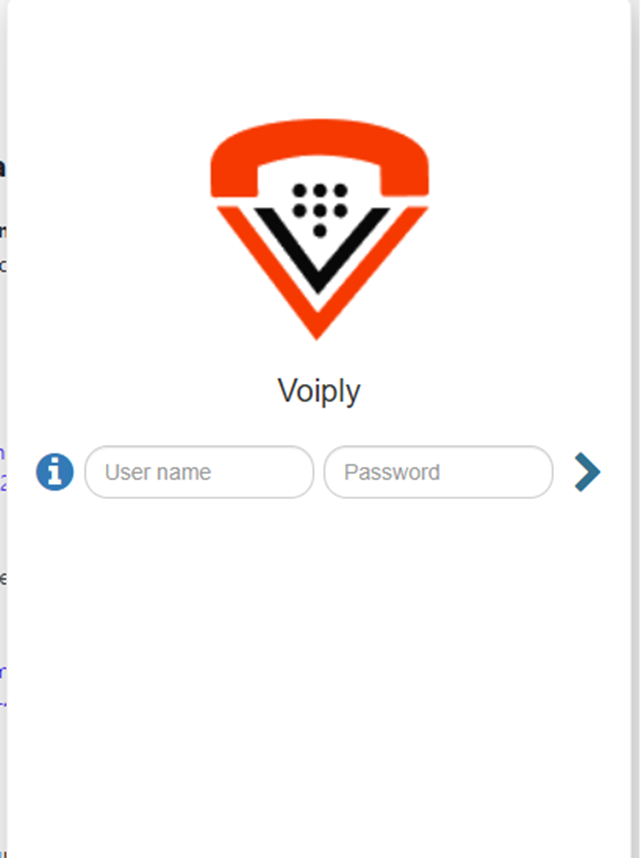
Sign in using your Voiply username and password.
-
Select the arrow to complete login.
4. Customize Your Settings
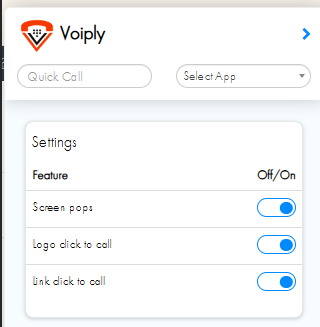
Inside the extension, you can enable or disable:
Screen Pops
Shows caller details on inbound calls.
Logo Click-to-Call
Click the Voiply logo to start a call.
Link Click-to-Call
Click any phone number on a webpage to dial automatically.
Adjust these based on how you prefer to work.
5. Connect Your CRM
-
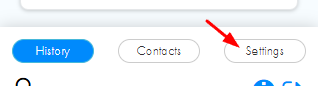
Open the extension and go to Call Logging.
-
Turn on the CRM you want to connect (HubSpot, Salesforce, Zoho, Redtail, or Pipedrive).
-
Follow the login steps that appear.
-
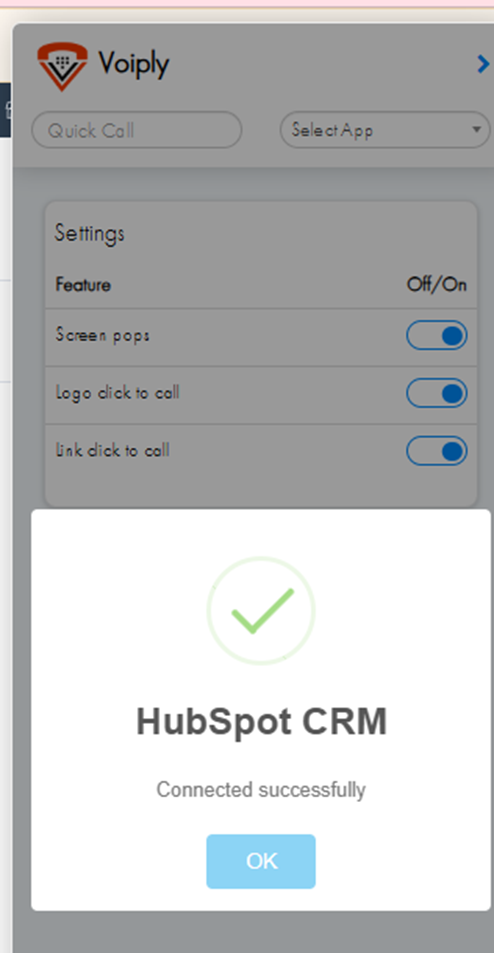
Once connected, the CRM will confirm the successful link.
6. How the Extension Works with Your CRM
After connecting a CRM:
• Calls you make through the extension can be logged automatically.
• Caller details may appear as screen pops during inbound calls.
• You can click phone numbers inside your CRM to dial instantly.
Troubleshooting
Can’t find the extension?
Make sure it’s pinned in your Chrome toolbar.
Login not working?
Double-check your PBX username and password. If you recently changed your PBX password, log out of the extension and sign back in.
CRM won’t connect?
Make sure you are using valid CRM login credentials and reauthorize access if needed.
Speed dials or BLF not updating?
Refresh the extension and verify you’re logged in.
If issues continue, reach out to Voiply Support for help.