
Step-by-Step Guide
1. Log in to Your Residential Portal
Use the login link: https://app.voiply.com/portal-login.
2. Open the Call History Section
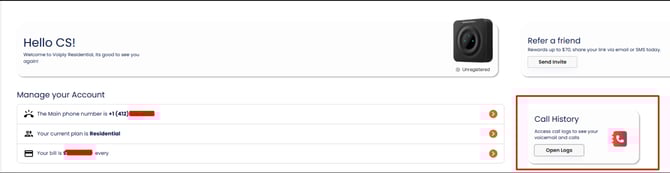
After logging in, go to your Dashboard.
Find the Call History card on the right side of the screen.
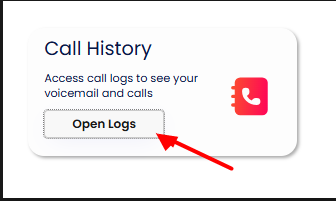
Click Open Logs.
3. A New Tab Will Open Showing Your Call Logs
When you select Open Logs, a new browser tab will open. This page displays all your call detail records.

4. Understanding Your Call History Columns
Each call log includes the following details:
-
Call Direction
Shows whether the call was Outbound or Inbound -
From Name
Displays the name or extension that placed or received the call -
Dialed
The phone number that was dialed for outbound calls -
To
The destination number or extension the call was connected to -
Date
The exact date and time the call occurred -
Duration
How long the call lasted
Missed calls will show 00:00 -
Reason
Indicates the call outcome, such as:-
Missed
-
Completed
-
Voicemail
-
5. Filter and Review Your Calls
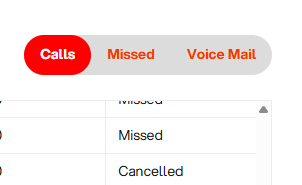
At the top of the Call History page, you can quickly filter calls by type:
-
Calls (all activity)
-
Missed
-
Voice Mail
You can also:
-
Scroll through your call history
-
Review recent activity at a glance
-
Confirm call outcomes and durations
You’re All Set
Your Call History makes it easy to track call activity, review missed calls, and confirm when calls occurred. You can access this information anytime from your Residential Portal.