
How to Reset or Change Your Voiply Portal Password
This guide walks you through both ways to update your Voiply Portal password:
-
If you forgot your password
-
If you’re already logged in and want to change it
Option 1: Reset Your Password (Forgot Password)
Use this option if you can’t log in or don’t remember your current password.
- Go to the Voiply Portal login page the click 'Forgot Password?'
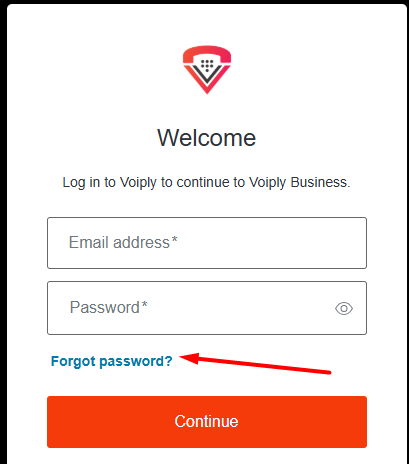
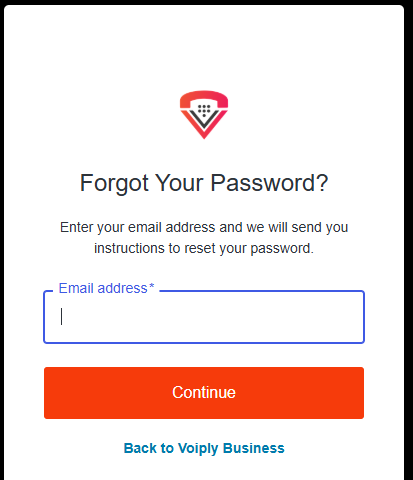
- From here simply enter the email address that you signed up with and we will send you a password reset link to your email.
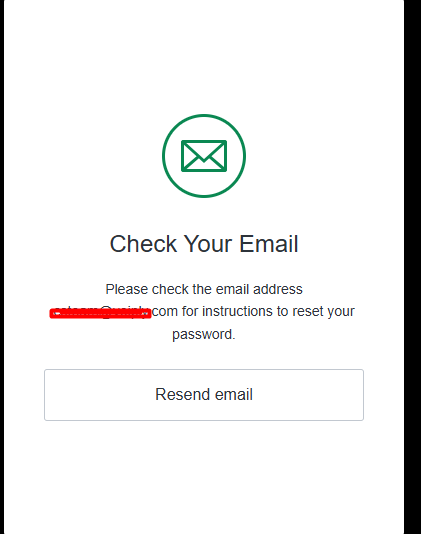
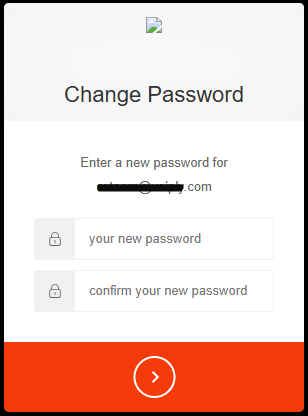
- Click on the link that was sent in the email to complete your password reset.
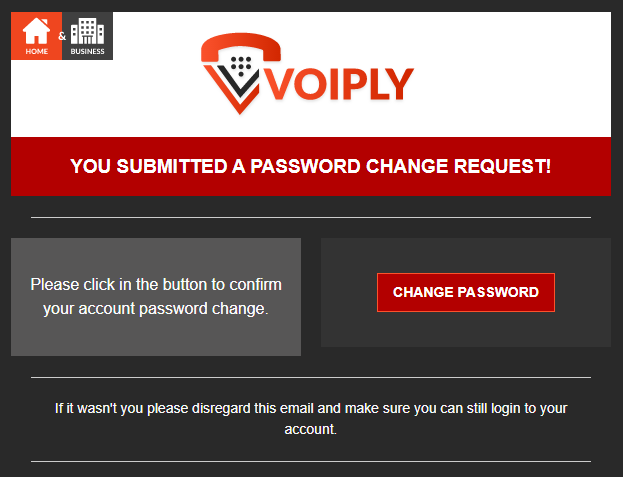
4. Click Change password to update the account password.
Option 2: Change Your Password While Logged In
Already logged into the portal and just want to update your password? This is the fastest option.
Step-by-Step
-
Log in to your Voiply Portal.
-
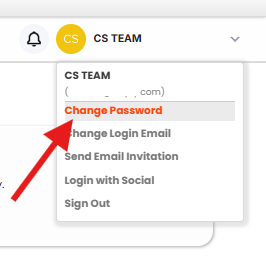
In the top-right corner, click the drop-down arrow next to your account name.
-
Select Change Password.
-
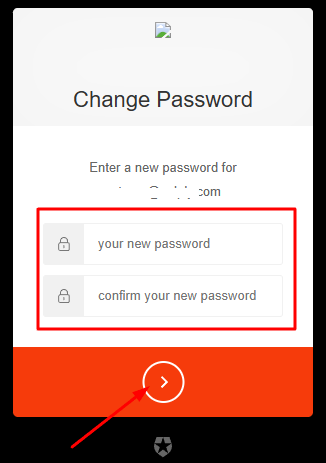
A new tab will open.
-
Enter your new password.
-
Confirm your new password.
-
Click the arrow button to save.
Important to Know
-
After your password is updated, you will be automatically logged out.
-
Log back in using your new password to continue.
Password Updated Successfully
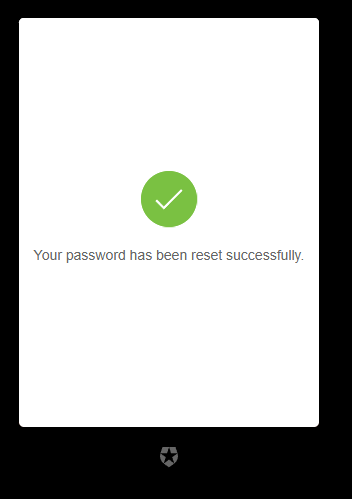
Once you see the confirmation message that your password has been reset successfully, your update is complete.
If you run into any issues or don’t receive the reset email, Voiply Support is here to help.
Takeaway:
Forgot your password? Use Forgot Password.
Already logged in? Use Change Password from the account menu.
Either way, you’re covered.