Step 1: Log In to Your Residential Portal
-
Visit https://voiply.com/ then click Login.
-
Enter your number.
-
Sign in using your email and password.
You will land on your Dashboard.
Step 2: Open Your Voicemail Settings
-
Scroll down to Quick Actions.
-
Select Voicemail.
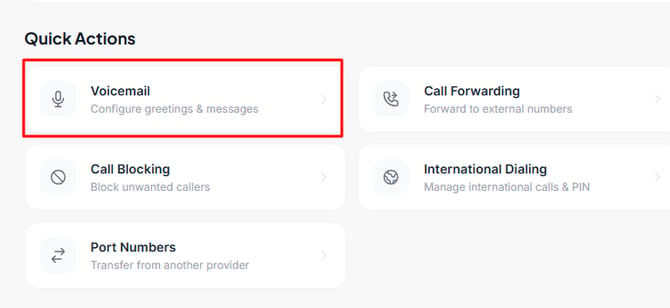
This will open the Manage Voicemail menu. 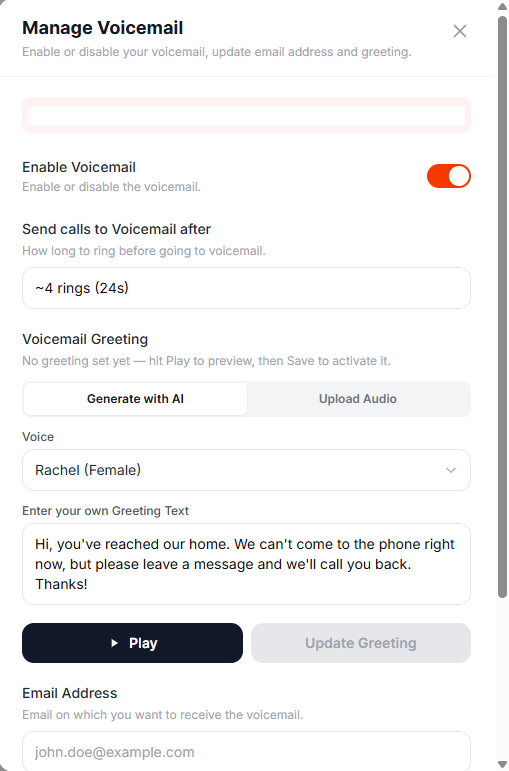
Step 3: Adjust Your Voicemail Settings
Inside Manage Voicemail, you can:
Enable or Disable Voicemail
Use the toggle at the top.
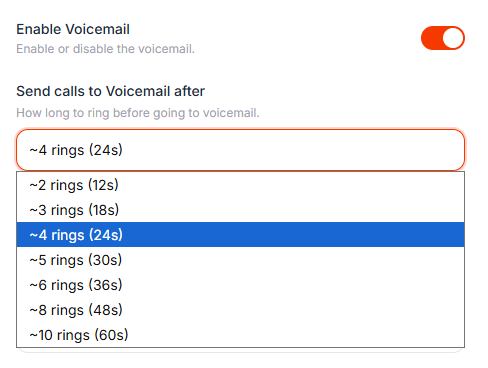
Choose the Number of Rings
Open the dropdown next to Send calls to Voicemail after and choose between 2 to 10 rings.
Step 4: Update Your Voicemail Greeting
-
In the Voicemail Greeting Message section, choose how you want to record your greeting:
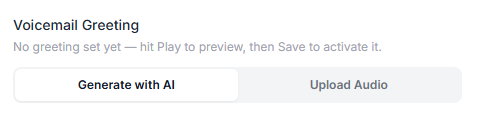
Option 1: Text to Speech
-
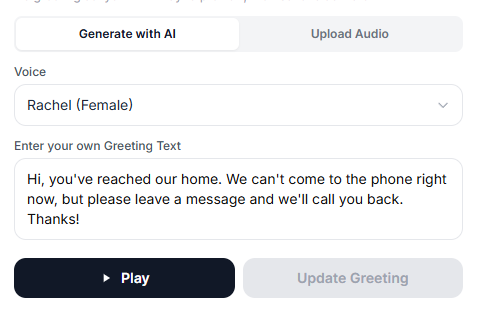
Select Generate with AI.
-
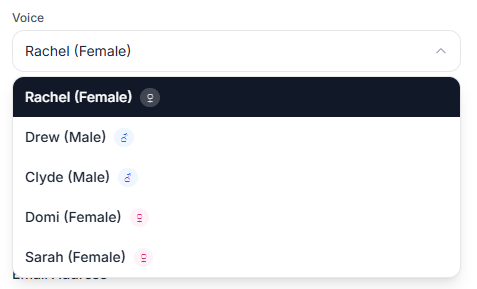
Choose a voice from the dropdown.
-
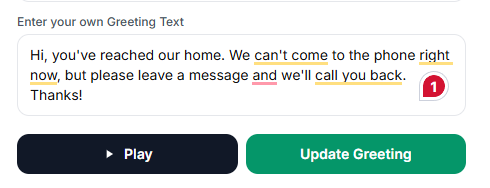
Type your message.
-
Click Update Greeting to create the recording.
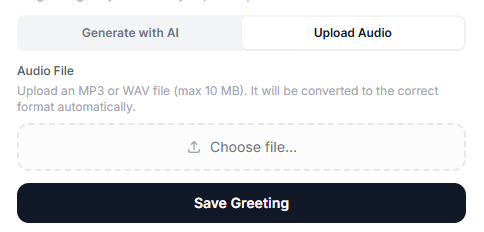
Option 2: Upload a Recording
-
Select Upload Audio.
-
Upload a .wav or .mp3 file from your device.
-
Click Save Greeting.
Step 5: Review Your Email Address and Voicemail PIN
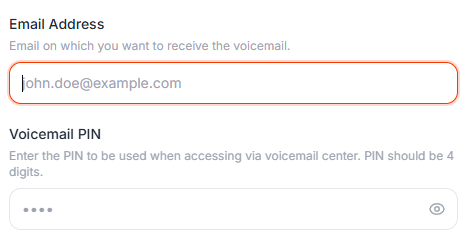
Email Address — Confirm the email on which you want to receive voicemails.
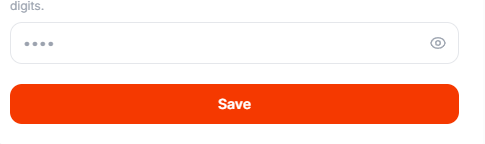
Voicemail PIN — Enter the PIN to be used when accessing via voicemail center. PIN should be 4 digits.
Step 6: Save Your Voicemail Settings