---
title: How Do I Set Up My AI Assistant?
description: Learn how to set up your Voiply AI Assistant to answer missed calls, take messages, answer questions, route urgent callers, and control your privacy settings.
---
[Skip to content](https://kb.voiply.com/how-do-i-set-up-my-ai-assistant#main-content)
English
Show submenu for translations

Open main navigation
Close main navigation
- English
Show submenu for translations
- Contact us
Contact us
How can we help you?
- There are no suggestions because the search field is empty.
1. [Voiply Knowlege Base](https://kb.voiply.com/)
2. [AI Assistant](https://kb.voiply.com/ai-assistant)
# How Do I Set Up My AI Assistant?
## Turn on your AI Assistant so it can answer missed calls, take messages, and help your callers.
Your AI Assistant picks up when you miss a call. It can take a message, answer common questions, send urgent callers straight to your phone, and email you a summary of what happened. This guide walks you through turning it on and setting it up, one step at a time. You can also watch the short video below to see how it works.
### Turn on your AI Assistant
1. Sign in to your Voiply portal at voiply.com/portal.
2. Open your AI Assistant.
3. Choose the person you want to set it up for. 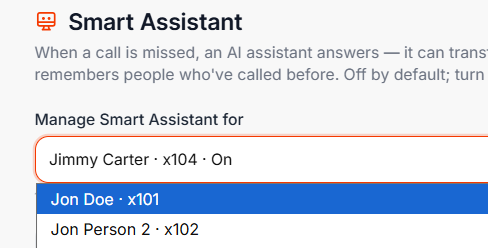
4. Turn the switch to On. 
5. Enter the email address where you want to receive missed-call messages. This is the only setting you have to fill in. Everything else is optional. 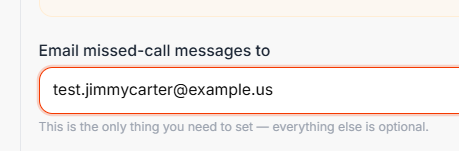
That is all it takes to get started. It can take a few minutes to turn on fully, so wait a couple of minutes before you test it with a missed call.
### Set up the optional features
Once your AI Assistant is on, you can fine-tune how it works using the tabs near the top of the page. You can skip any of these and come back later.
#### Overview
This is your home base. It gives you a short summary of how your AI Assistant works, and a checklist that shows what you have set up so far.
#### Routing
This tab lets you decide where certain calls go.
- Turn on **Escalate urgent calls to a phone** if you want the assistant to ring your phone when it decides a call is truly urgent, instead of taking a message. If you do not pick up, it goes back to taking a message.
- Select **Add a rule** to send certain callers somewhere specific. For example, you can send your boss straight to your cell phone. 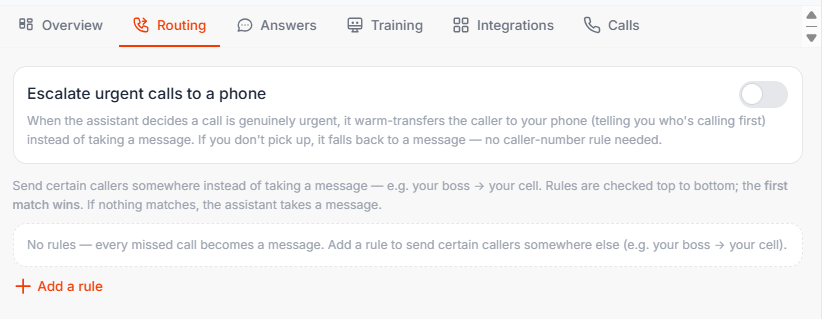
#### Answers
This tab lets you teach your AI Assistant to answer common questions on its own, like your hours or your pricing. You can have it speak the answer out loud, or text a link to the caller. Select **Add an answer** to create one. 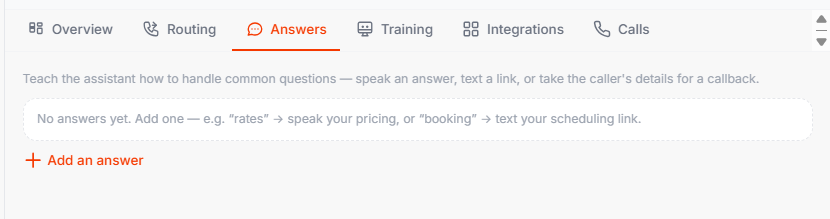
#### Training
This tab lets you coach your AI Assistant in plain words.
1. In the text box, tell the assistant how to behave and what to know. For example, you can share your hours, what your business does, or how formal you want it to sound.
2. Use the **Try it out** area to test your assistant before you finish. You will need to save your changes first. 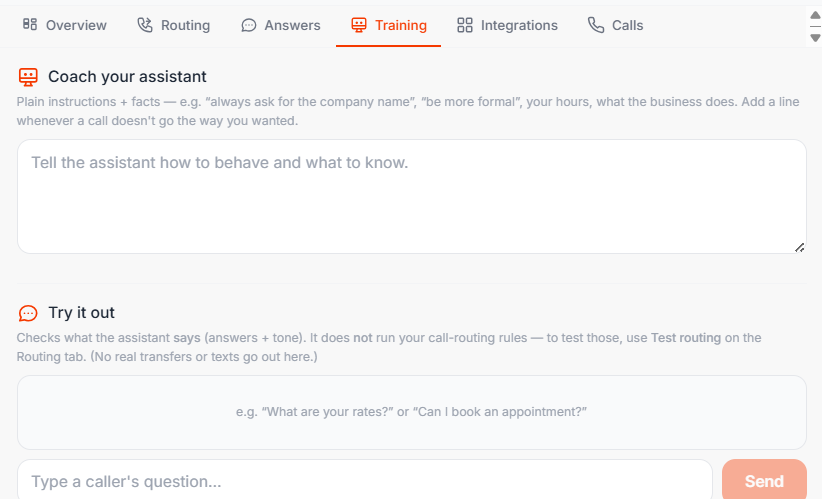
You will also find your privacy settings on this tab. We cover those in the next section.
#### Integrations
This tab lets you connect your calendar so the assistant can check when you are free, and even book a meeting during a call. You can connect Google Calendar, Outlook or Microsoft 365, or Apple iCloud. Select **Connect** next to the one you use. 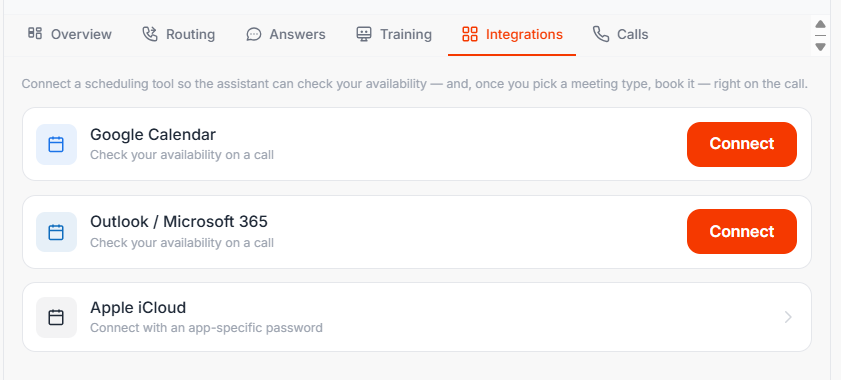
#### Calls
This tab shows a log of every call your AI Assistant has handled, along with a recording and a short summary. If you just turned it on, it can take a few minutes before calls start showing up here. 
### Your privacy
You are in control of what your AI Assistant saves and what it hides. You will find these settings near the bottom of the **Training** tab.
#### Store conversation data
This setting decides whether your AI Assistant saves a record of each call. That record can include the call history, helpful insights, and the recording, so you can look back at them later.
- Choose **Store** to keep these records.
- Choose **Don't store** to save nothing. Some businesses turn this off to follow privacy rules, such as HIPAA, which is a health privacy law in the United States.
#### Redact sensitive info
"Redact" simply means to hide private information. Turn this on if you want your AI Assistant to automatically hide sensitive details, like Social Security numbers or card numbers, from any saved conversations.
- Choose **Off** to leave the information as is.
- Choose **Redact** to hide these details automatically. 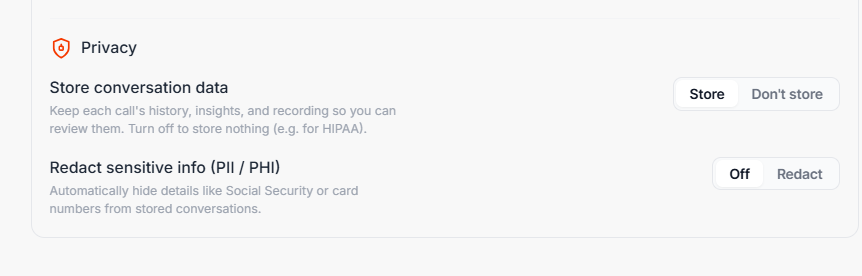
### Save your changes
When you are done, select **Save changes** at the bottom of the page to keep your settings.
### Helpful Tips
- The email address is the only thing you must set. Everything else is optional.
- It can take a few minutes to turn on fully. Wait a couple of minutes before testing.
- You can turn your AI Assistant on or off for each person on your account separately.
- Missed-call messages are emailed to you in real time, and each one is flagged as Urgent, Normal, or Low or Spam so you know what needs attention first.
- If privacy is important for your business, remember you can choose not to store call data at all, or have sensitive details hidden automatically.
### Still need help?
Our support team is happy to walk you through the setup.
📩 [Submit a support ticket](https://kb.voiply.com/residential-how-to-use-support-tickets-in-your-voiply-portal) | 📞 Call us at (844) 843-4175
- [Getting Started](https://kb.voiply.com/getting-started#main-content)
- [Account Setup & Verification](https://kb.voiply.com/getting-started#account-setup-verification)
- [Billing Basics](https://kb.voiply.com/getting-started#billing-basics)
- [Calling and Service Limitations](https://kb.voiply.com/getting-started#calling-and-service-limitations)
- [Features & Enhancements](https://kb.voiply.com/getting-started#features-enhancements)
- [Network Setup](https://kb.voiply.com/getting-started#network-setup)
- [Using the Voiply Mobile App](https://kb.voiply.com/getting-started#using-the-voiply-mobile-app)
- [Porting Your Number](https://kb.voiply.com/porting-your-number)
- [Home Phone Service](https://kb.voiply.com/home-phone-service#main-content)
- [Cancellation and Returns](https://kb.voiply.com/home-phone-service#cancellation-and-returns)
- [Troubleshooting](https://kb.voiply.com/home-phone-service#troubleshooting)
- [Billing and Payments](https://kb.voiply.com/home-phone-service#billing-and-payments)
- [Account Management](https://kb.voiply.com/home-phone-service#account-management)
- [Getting Started](https://kb.voiply.com/home-phone-service#getting-started)
- [Kids Phone Service](https://kb.voiply.com/kids-phone-service)
- [Business Phone Service](https://kb.voiply.com/business-phone-service#main-content)
- [Starter Plan](https://kb.voiply.com/business-phone-service#starter-plan)
- [The Essentials](https://kb.voiply.com/business-phone-service#the-essentials)
- [Premier Plan](https://kb.voiply.com/business-phone-service#premier-plan)
- [Number Parking](https://kb.voiply.com/number-parking)
- [Internet Service](https://kb.voiply.com/internet-service)
- [Online Fax Service](https://kb.voiply.com/online-fax-service)
- [Premium Add-ons](https://kb.voiply.com/premium-add-ons)
- [AI Receptionist](https://kb.voiply.com/ai-receptionist)
- [AI Assistant](https://kb.voiply.com/ai-assistant)
[](http://www.voiply.com)
301 Grant St #270, Pittsburgh, PA 15219
[mailto:support@voiply.com](mailto:support@voiply.com)
Copyright © 2025, Voiply, LLC
```json
{
"@context" : "https://schema.org",
"@type" : "VideoObject",
"caption" : {
"@type" : "MediaObject",
"contentUrl" : "https://kb.voiply.com/media-transcripts/217060271031/en.vtt",
"inLanguage" : "en",
"name" : "en Captions"
},
"contentUrl" : "https://45056553.fs1.hubspotusercontent-na1.net/hubfs/45056553/video_assets/217060271031/inherited/web_optimized.mp4",
"dateModified" : "2026-07-13T16:50:19.377Z",
"duration" : "PT51S",
"height" : 936,
"name" : "ai_assistant_cropped",
"thumbnailUrl" : "https://45056553.fs1.hubspotusercontent-na1.net/hubfs/45056553/ai_assistant_cropped.mp4/medium.jpg",
"uploadDate" : "2026-07-13T16:50:07.299Z",
"width" : 1920
}
```